1.Log in to cPanel:
Visit your cPanel control panel (https://yourdomain.com:2083).
Log in with your credentials.
2. Navigate to Mail Settings:
Under the “Websites & Domains” section, select “Mail”.
You’ll be directed to the mail management page.
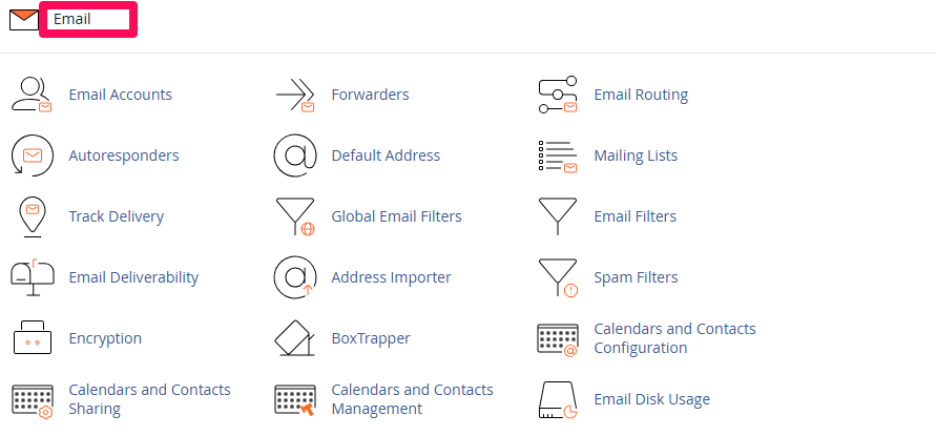
3. Select a Domain:
If you have multiple domains, select the domain for which you want to configure the spam filter settings.
Click on the “Spam Filter” tab next to the domain’s email settings.
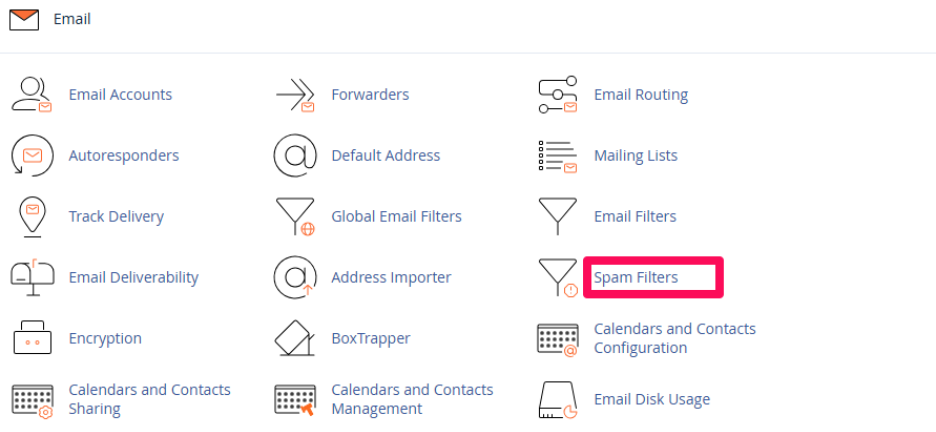
4. Whitelist or Blacklist
You may see other options to Whitelist or Blacklist certain email addresses or domains.
Whitelist: Emails from trusted senders will never be marked as spam.
Blacklist: Emails from certain addresses or domains will always be considered spam.

We can blacklist the domain name as well as IP address.
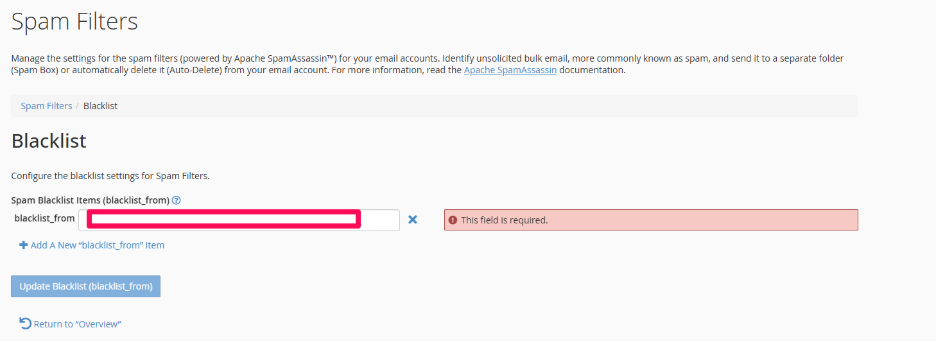
5. Save Settings:
After configuring the spam filter settings to your liking, click “OK” or “Update blacklist” to save the changes.
