Last reviewed: 26th September 2026
Quick Answer
In Roundcube, you can download an email by opening the message and choosing Download (.eml) from the More menu. The email will be saved as an EML file on your computer, which can be opened in supported email applications.
Steps to Download an Email Using Roundcube
Step 1: Log in to Roundcube
Access your Roundcube webmail account using your preferred web browser.
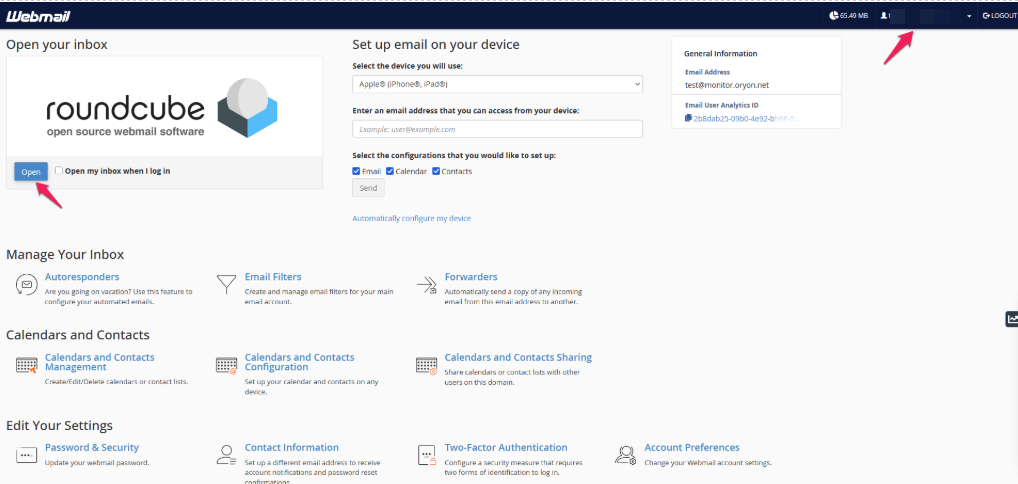
Step 2: Open the Email
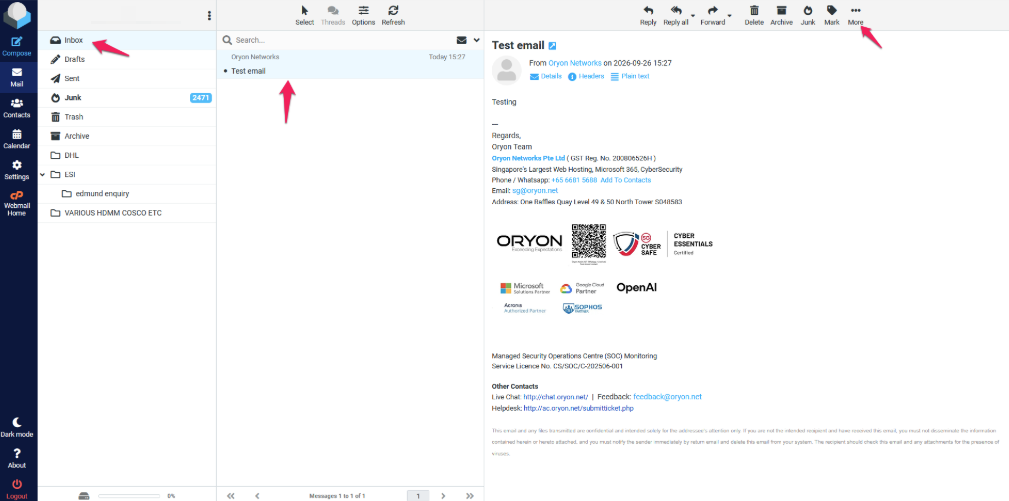
Open the email by navigating to the folder that contains it.
Step 3: Open the More Menu
Click the More button (three dots or More option) located in the message toolbar.
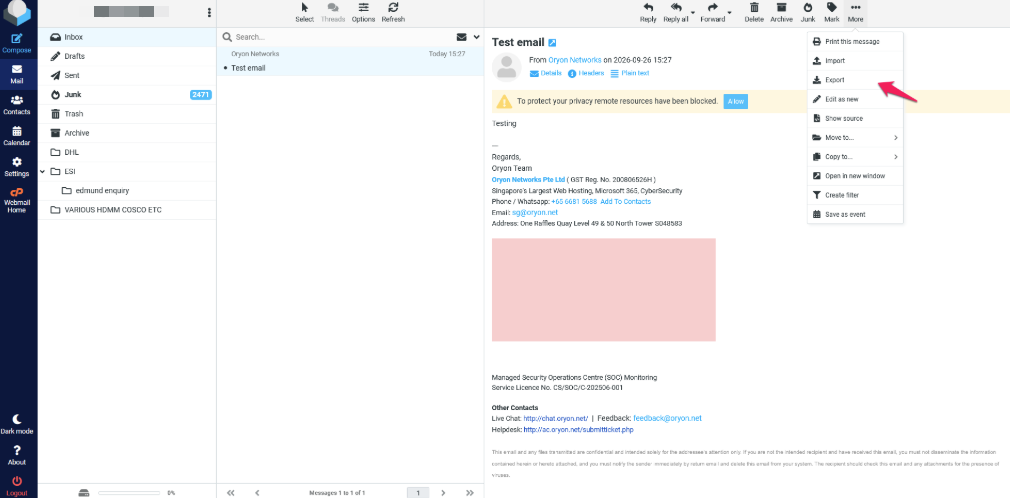
Step 4: Select Export (.eml)
Choose Export (.eml) from the available options.
Step 5: Save the File
Select the location where you want to save the email file and click Save.
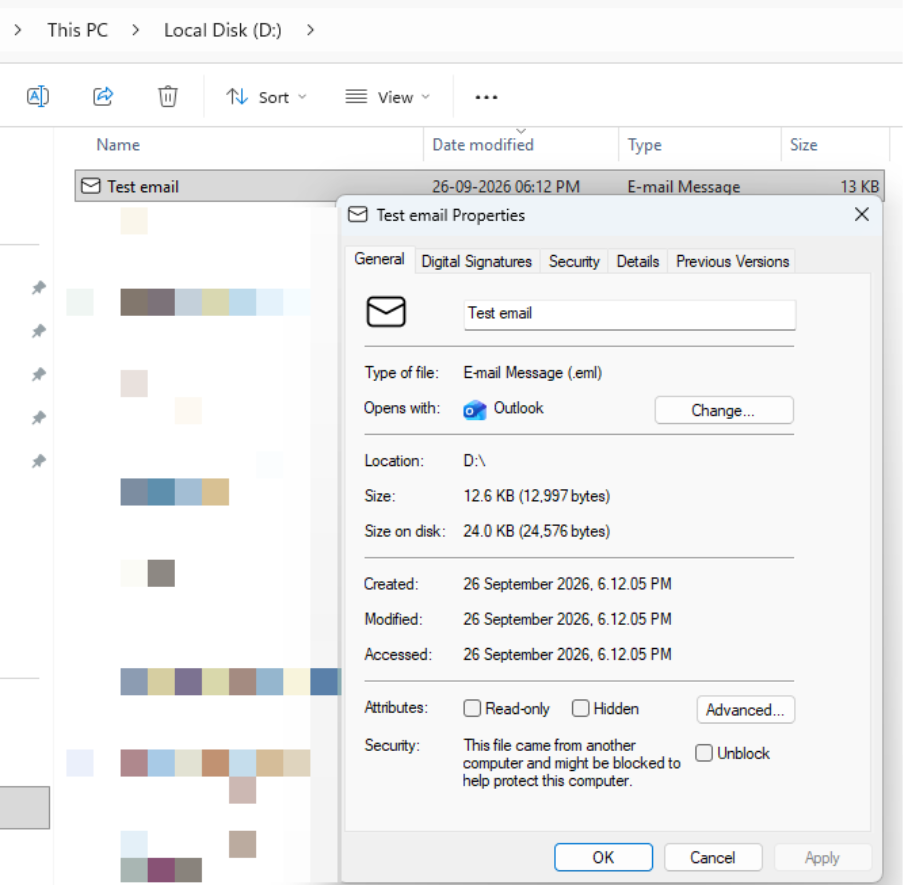
Step 6: Verify the Download
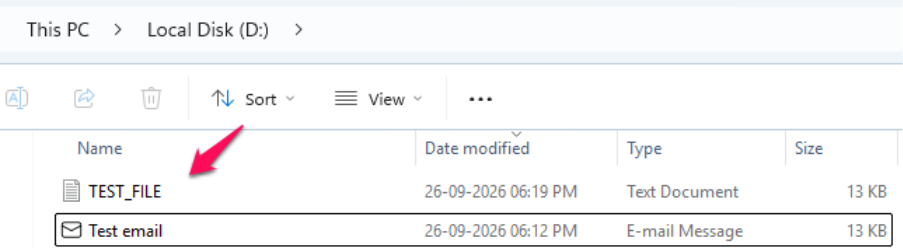
Browse to the selected location and confirm that the email has been saved as an .eml file.
Alternative Method: Download the Email Source
Step 1: Open the Email
Open the email message within Roundcube.
Step 2: View Source
Click More and select Show Source.
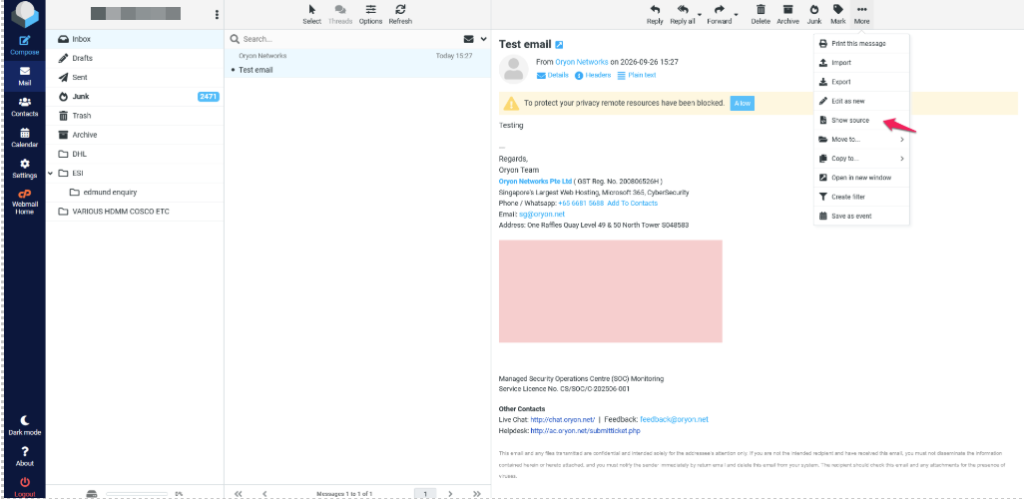
Step 3: Save the Source
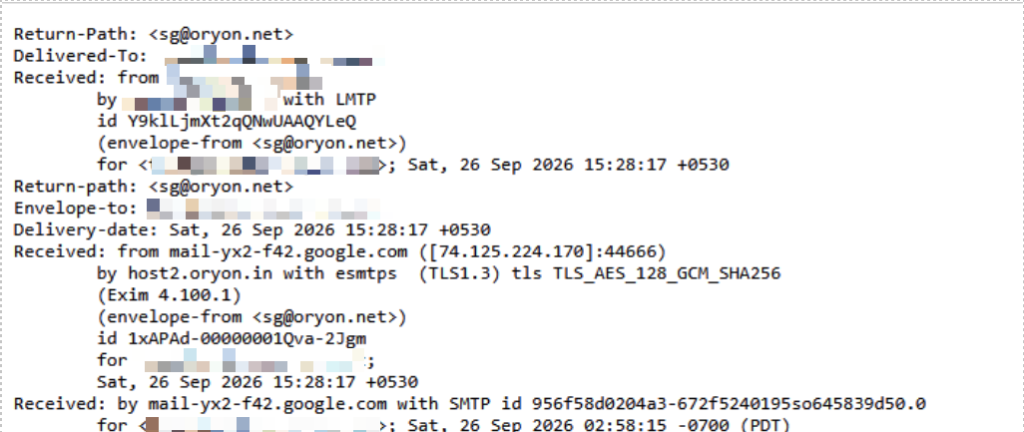
Your browser will display the message source. Use the browser’s Save As option to save the content as a file for further analysis or troubleshooting.
Common Problems
Download Option Is Missing
- Ensure you have opened the email message.
- Verify that you are using a supported version of Roundcube.
- Refresh the browser and try again.
Email Does Not Download
- Check whether pop-up downloads are blocked by your browser.
- Verify that your browser allows file downloads.
- Try using a different web browser.
Unable to Open the Downloaded EML File
- Open the file using Outlook, Windows Mail, Thunderbird, or another compatible email client.
- Ensure the file extension remains .eml.
Attachments Are Not Accessible
- Attachments are typically preserved when an email is downloaded as an EML file.
- To view the attachments, open the EML file in an email program that supports it.
Additional Information
The EML format preserves the original email content, headers, sender information, recipients, timestamps, and attachments. This format is commonly used for email backups, migrations, and troubleshooting purposes.
Need help managing Microsoft 365 for your organisation?
Oryon provides Microsoft 365 licensing, migration, email configuration and ongoing technical support for businesses in Singapore.