Last Reviewed: 2 November 2026
Quick Answer
Two critical security vulnerabilities, identified as CVE-2026-109618 and CVE-2026-109619, have been discovered in PHP. These vulnerabilities may allow attackers to execute malicious code remotely on affected servers.
Customers using PHP-based websites are advised to ensure that their PHP environment has received the latest security updates.
If you are using cPanel hosting, you can check your website’s current PHP version through the MultiPHP Manager. If you are unsure whether the security updates have been applied, please contact the Oryon Support Team for assistance.
About the PHP Security Vulnerabilities
The PHP development team announced two critical security vulnerabilities on 21 October 2026.
The vulnerabilities are:
- CVE-2026-109618 – Remote Code Execution
A vulnerability involving PHP memory management that may allow an attacker to execute malicious code remotely under certain conditions.
- CVE-2026-109619 – Remote Code Execution
A vulnerability involving PHP’s internal request-related data that may allow an attacker to execute malicious code through affected PHP processes.
Successful exploitation may allow unauthenticated attackers to execute code on affected PHP installations.
These vulnerabilities affect PHP installations serving web requests, including PHP-FPM, Apache, CGI and LiteSpeed environments.
Affected PHP Versions
The PHP development team has released security updates for the following PHP versions:
| PHP Version | Patched Version |
| PHP 8.2 | 8.2.35 |
| PHP 8.3 | 8.3.36 |
| PHP 8.4 | 8.4.27 |
| PHP 8.5 | 8.5.12 |
Important: The PHP development team no longer regularly releases security upgrades for PHP 8.1 and earlier versions.
Some hosting environments also receive security fixes through backported packages. Therefore, the displayed PHP version alone may not confirm whether the security vulnerability has been addressed.
Recommended Actions
We strongly recommend the following actions:
- Make that the PHP version on your website has the necessary security patches installed.
- Update your PHP environment to the latest patched version supported by your hosting provider.
- Ensure that your website’s CMS, themes and plugins are kept up to date.
- Test your website after any PHP version change to confirm that it continues to function correctly.
How to Check Your PHP Version in cPanel
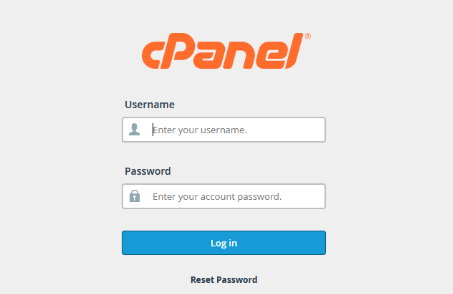
Step 1: Log in to cPanel
Enter your cPanel username and password to access your cPanel account.
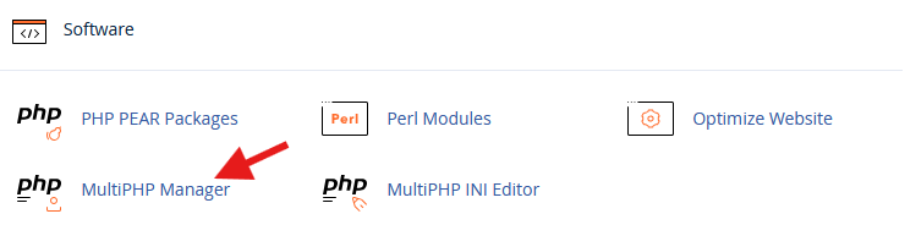
Step 2: Open MultiPHP Manager
Choose MultiPHP Manager from the Software section of the cPanel panel.
Step 3: Locate Your Domain
Under MultiPHP Manager, locate the domain name for which you would like to check the PHP version.
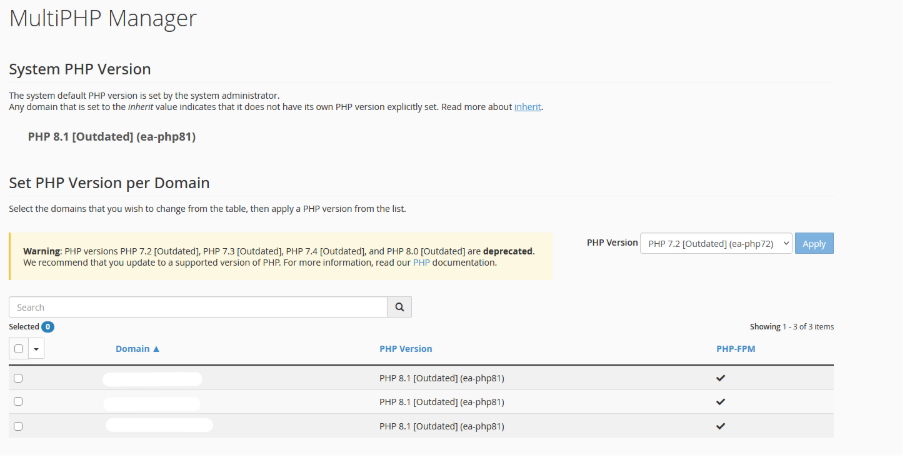
Step 4: Check the PHP Version
Check the PHP version currently assigned to your domain.
If you are unsure whether your installed PHP package includes the required security fixes, contact the Oryon Support Team for verification.
How to Update Your PHP Version
If your website requires a PHP version change, you can follow these steps:
Step 1: Open MultiPHP Manager After logging into cPanel, select MultiPHP Manager.
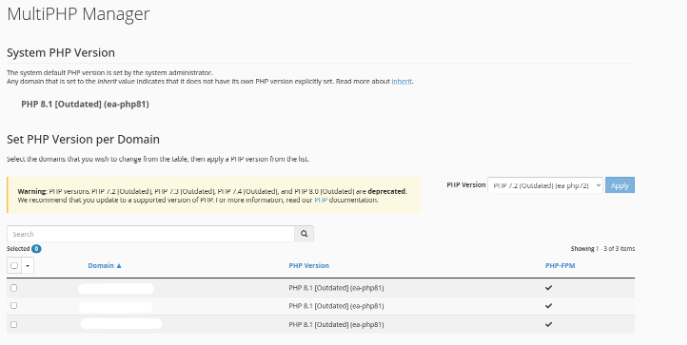
Step 2: Select Your Domain
Find and pick the domain where you want to modify the PHP version.
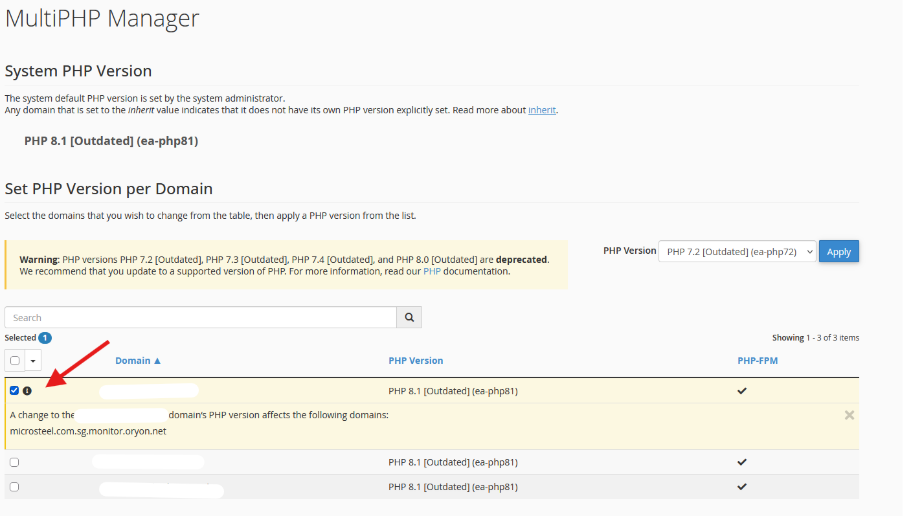
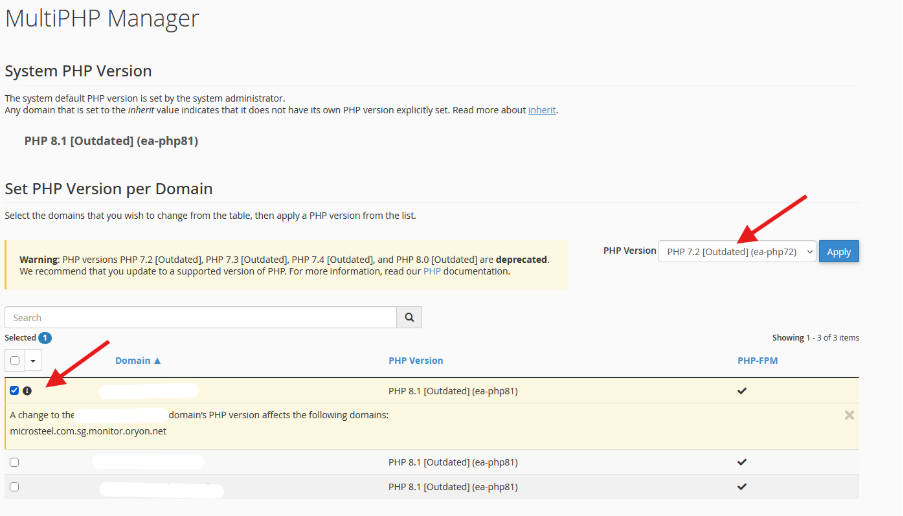
Step 3: Select the Required PHP Version
Choose an appropriate PHP version from the available PHP versions.
Before making any changes, ensure that your website’s CMS, themes and plugins support the selected PHP version.
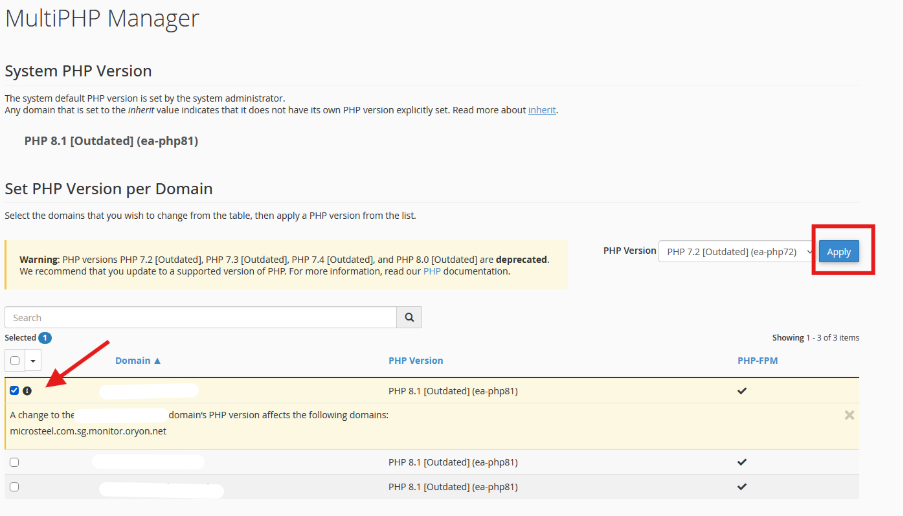
Step 4: Apply the Changes
Select Apply to save the PHP version change.
Step 5: Verify Your Website
After the PHP version change, launch your website to see if it is operating properly.
Note: Changing the PHP version through MultiPHP Manager does not independently install security patches into the server’s PHP packages.
Common Problems
The Required PHP Version Is Not Available
Possible Cause:
The hosting server may not have the required PHP version installed or made available.
Resolution:
To find out whether PHP versions and security updates are available for your hosting environment, get in touch with the Oryon Support Team.
Website Displays Errors After Changing PHP Version
Possible Cause:
Your website’s CMS, themes or plugins may not be compatible with the selected PHP version.
Resolution:
Check whether your CMS, themes and plugins support the selected PHP version.
Restore the previous PHP version if necessary.
PHP Version Appears Older Than the Recommended Version
Possible Cause:
Some hosting environments provide security fixes through backported packages without changing the displayed PHP version.
Resolution:
Contact the Oryon Support Team to verify whether the installed PHP package includes the required security patches.
Additional Information
For further technical information regarding these vulnerabilities and the available security updates, refer to the official announcements:
Need Further Assistance?
If you experience any issues related to these PHP vulnerabilities for your website, please contact the Oryon Service Desk for further assistance.