Last reviewed: 3rd August 2026
Quick Answer
You can add the DNS record in cPanel by logging in to your cPanel account, then opening Zone Editor and selecting your domain, then clicking Manage, then + Add Record. Enter the required details such as the Name, Record Type, TTL (optional), and Record Value, then click Save Record. The new DNS record will be added, though it may take some time to propagate across the internet.
Purpose
This article explains how to add a DNS record using the Zone Editor in cPanel.
Prerequisites
The required DNS record details (A, CNAME, MX, TXT, etc.).
Access to the cPanel account.
The domain’s DNS must be managed by the cPanel server.
Step 1: Log in to cPanel
- Open your cPanel login URL.
- Enter your Username and Password.
- Click Log in.
Step 2: Open Zone Editor
- Navigate to the Domains section.
- Click Zone Editor.
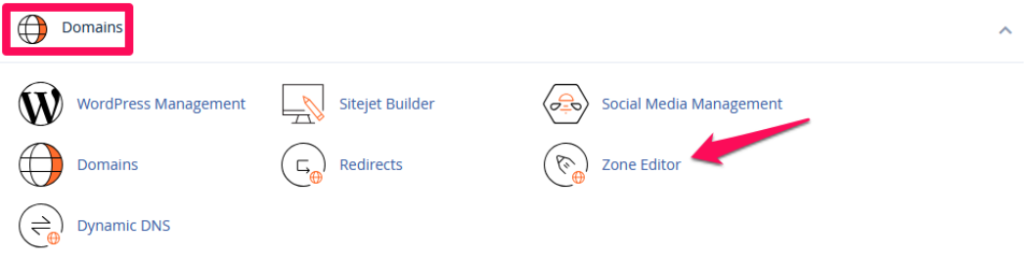
Step 3: Select the Domain
- Locate the domain for which you wish to add the DNS record.
- Click Manage next to the domain.

Step 4: Add a DNS Record
- Click + Add Record.
- Enter the following details:
- Name – Enter the hostname (e.g., test, mail, or @).
- TTL – Leave the default value unless a different TTL is required.
- Type – Select the required record type (A, AAAA, CNAME, MX, TXT, SRV, etc.).
- Record – Enter the destination value (IP address, hostname, or text value).


Step 5: Save the Record
- Review the information entered.
- Click Save Record.
- A confirmation message will appear indicating that the DNS record has been added successfully.

Verify the DNS Record
- Return to Zone Editor.
- Verify that the new DNS record appears in the record list.
- Allow time for DNS propagation if the changes are not immediately visible.
Notes
- DNS propagation will take anywhere from a few minutes up to 48 hours.
- Ensure the DNS record values are correct before saving.
- If a record with the same Name and Type already exists, update the existing record instead of creating a duplicate.
Common DNS Record Types:
A – Maps a hostname to an IPv4 address.
AAAA – Maps a hostname to an IPv6 address.
CNAME – Maps one hostname to another hostname.
MX – It specifies the mail server for the domain.
TXT – Stores text records such as SPF, DKIM, or domain verification.
SRV – Specifies the location of a service.
CAA – Specifies which Certificate Authorities can issue SSL certificates for the domain.