Last reviewed: 27th September 2026
Quick Answer
Your domain name, cPanel subdomain, or server hostname can all be used to access cPanel. Simply open the cPanel URL in a web browser and sign in using your cPanel username and password.
Method 1: Access cPanel Using Your Domain Name
Step 1: Open a Web Browser
Launch your preferred web browser.
Step 2: Enter the cPanel URL
In the address bar, type:
Replace yourdomain.com with your actual domain name.
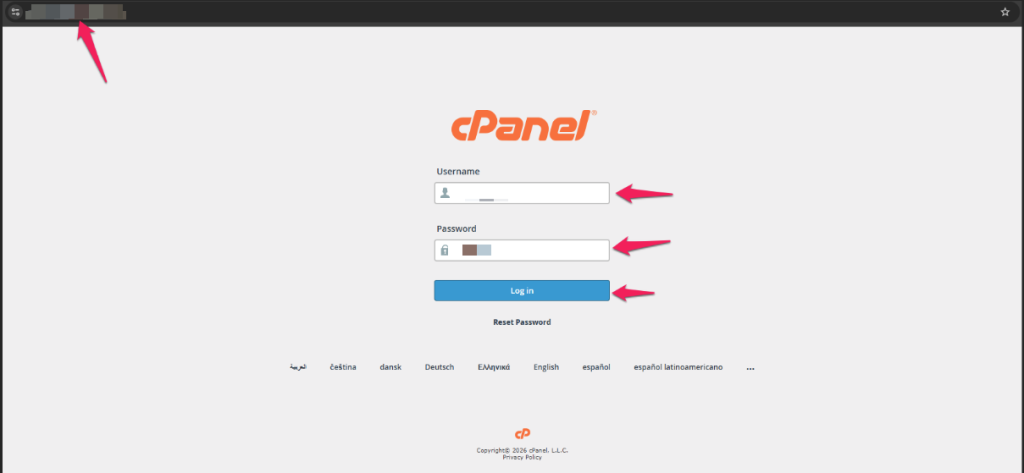
Step 3: Enter Your Login Credentials
Enter your:
- cPanel Username
- cPanel Password
Step 4: Click Log In
Click Log In to access your cPanel dashboard.
Step 5: Verify Successful Login
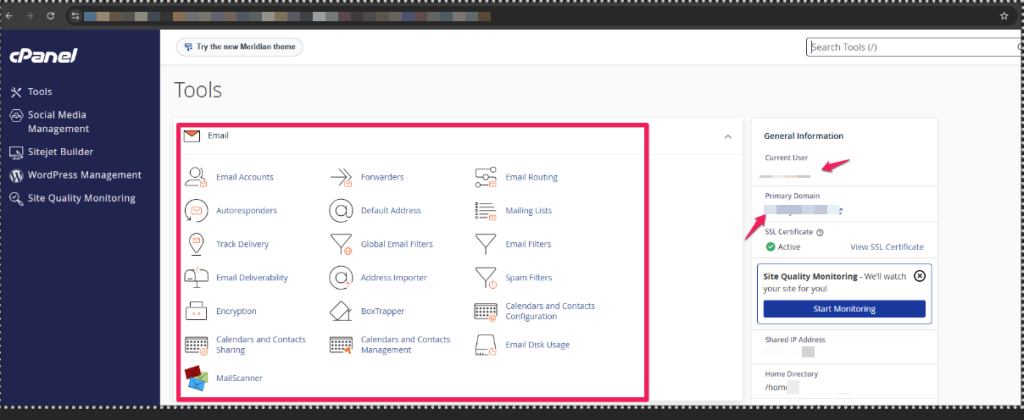
Once logged in, the cPanel home screen will be displayed, showing various management options such as:
- Files
- Email Accounts
- Domains
- Databases
- Security
- Metrics
Method 2: Access cPanel Using the Server Hostname
Step 1: Locate the Server Hostname
Refer to your hosting welcome email for the server hostname.
Example:
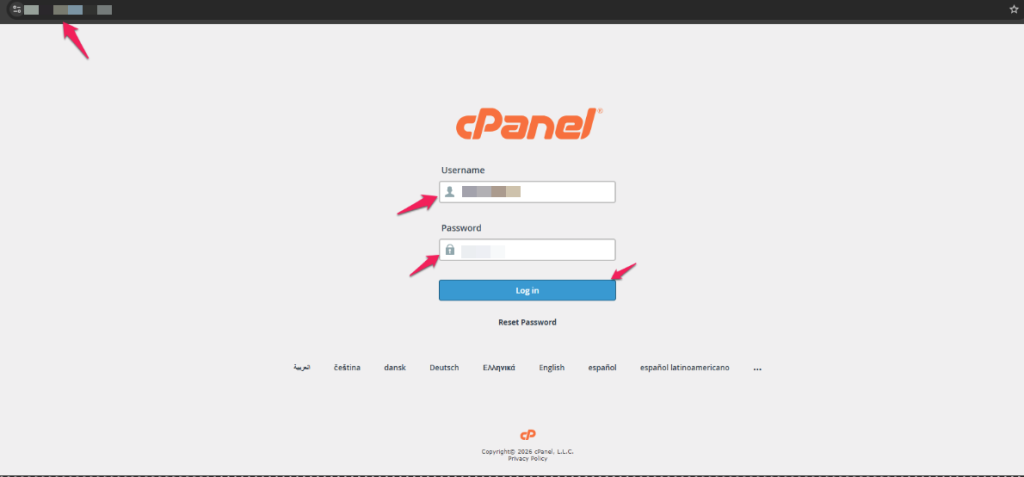
Step 2: Open the URL
Enter the hostname URL into your browser.
Step 3: Sign In
Enter your cPanel login credentials.
Step 4: Access cPanel
The cPanel dashboard will open after successful login.
Alternative Method: Access cPanel Using the Server IP Address
Step 1: Obtain the Server IP Address
Locate the server IP address provided in your hosting welcome email.
Step 2: Enter the URL
Type the following in your browser:
Example:
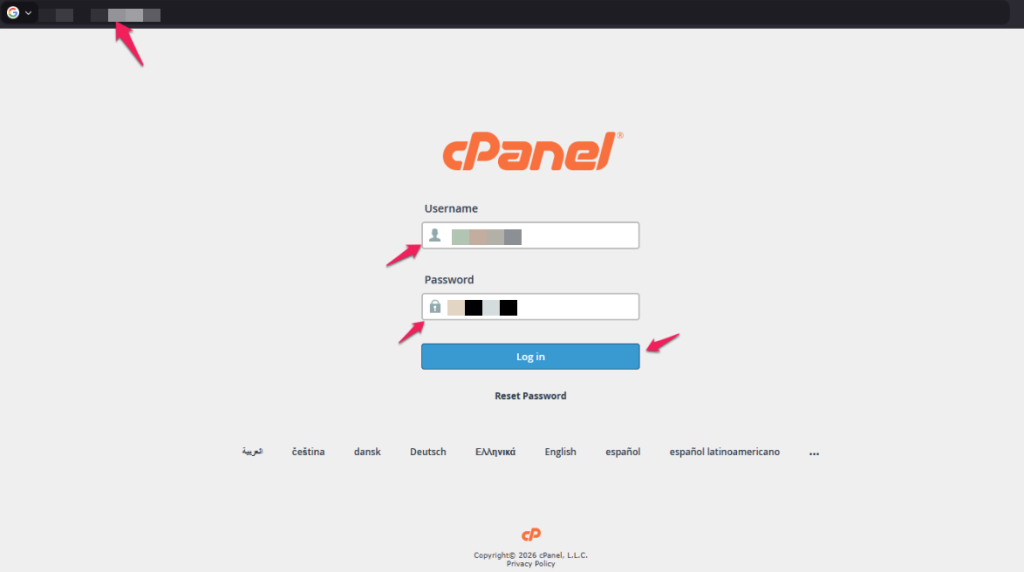
Step 3: Enter Login Credentials
Provide your cPanel username and password.
Step 4: Click Log In
You will be redirected to the cPanel dashboard.
Note: Once your domain has propagated and is pointing to the hosting server, it is recommended to use the domain-based URL instead of the server IP.
Common Problems
Unable to Access cPanel
- Verify that the URL is correct.
- Ensure that port 2083 is included in the URL.
- Confirm that your internet connection is working.
Invalid Username or Password
- Check the login credentials provided in your hosting welcome email.
- Ensure there are no typing mistakes.
- If you want a password reset, get in touch with your hosting company.
Website Opens Instead of cPanel
- Add :2083 at the end of the URL.
- Use the cPanel hostname or server IP address.
Security Warning Appears
- This may occur if the SSL certificate is not fully trusted by the browser.
- Verify the URL and proceed only if you recognize the hosting server.
Connection Timed Out
- Confirm the hosting account is active.
- Check whether your firewall or network is blocking port 2083.
- Contact your hosting provider for assistance.
Additional Information
A web-based hosting control panel called cPanel enables you to manage:
- Website Files
- Email Accounts
- Domains and Subdomains
- DNS Records
- Databases
- SSL Certificates
- Backups
- Security Settings
The cPanel username, password, server hostname, and IP address are typically provided in the hosting account activation email.
Need help with your Web Hosting services?
Oryon provides website hosting, email hosting, domain registration, SSL certificates, server management, and ongoing technical support for businesses in Singapore.