Published Date: 12th November 2026
Last Updated: 5th November 2026
Category: Email / Webmail
cPanel Version: 138.0.18
Steps to Blacklist a Particular Domain in Roundcube Webmail
Roundcube Webmail allows users to create email filters for managing incoming messages. A filter can be configured to identify emails received from a particular domain and apply an action, such as moving the messages to the Junk folder or discarding them. Roundcube filtering is based on Sieve, and the available rules and actions depend on the mail server configuration. Roundcube Filters documentation.
This article explains how to configure a filter in Roundcube Webmail to block emails received from a particular domain.
Prerequisites
Before proceeding, ensure that:
- The Filters option is available under Roundcube Settings.
- You know the domain that needs to be blocked, for example example.com.
Quick Navigation
Roundcube Configuration
- Open Roundcube Webmail
- Access Settings
- Open Filters
- Create a New Filter
- Configure the Domain Filter
- Configure the Filter Action
- Save the Filter
Additional Information
- Verify the Filter
- Alternative Method Using cPanel
- Common Problems
- Frequently Asked Questions
- Related Knowledge Base Articles

How to Blacklist a Particular Domain in Roundcube Webmail
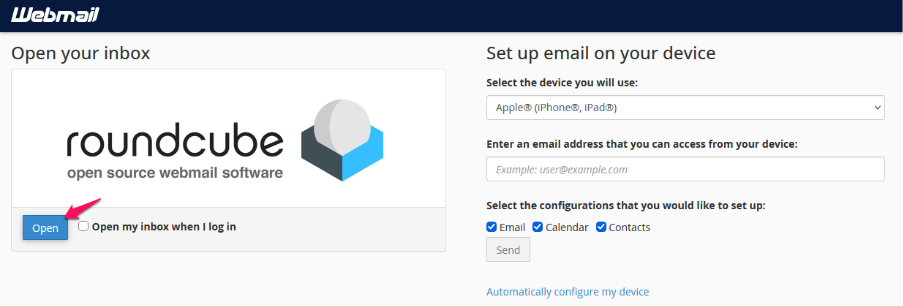
Step 1: Open Roundcube Webmail
Log in to Webmail using the required email account.
Under Open your inbox, locate Roundcube and click Open.
Step 2: Open Settings
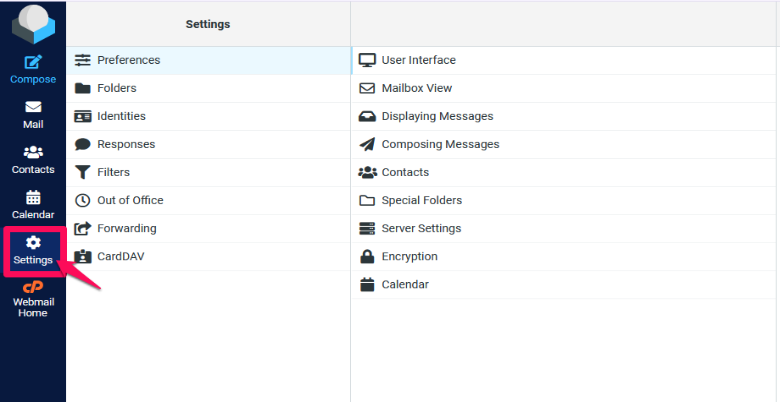
After the Roundcube mailbox opens, click Settings from the left-side menu.
Step 3: Open Filters
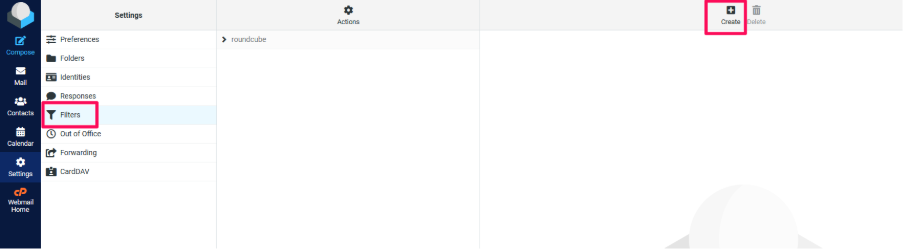
From the Settings menu, select Filters.
The available filters and filter sets will be displayed.
Roundcube Filters documentation confirms that Roundcube filters contain rules and actions and are processed using Sieve filtering.
Note: The Filters option and available filtering features depend on the email server configuration.

Step 4: Create a New Filter
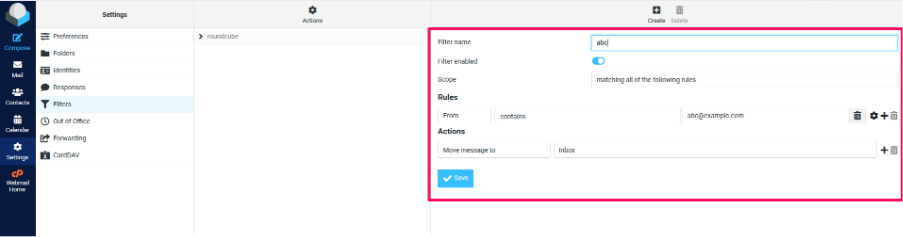
Click Create or the + icon to create a new filter.
Enter a suitable name in the Filter name field.
For example:
Block Domain
Ensure that Filter enabled is turned on.

Step 5: Configure the Domain Filter
Under Rules, configure the filter to match messages received from the required domain.
Use the following configuration:
| Field | Value |
| Scope | Matching all of the following rules |
| Rule | From |
| Condition | Contains |
| Value | @example.com |
Replace example.com with the actual domain that needs to be filtered.
Example: If @example.com is configured, the rule is intended to match sender addresses from that domain, such as:
- sales@example.com
- support@example.com

Step 6: Configure the Filter Action
Under Actions, select the action that should be performed when an email matches the configured rule.
Depending on the available Roundcube/server options, select an appropriate action such as:
- Move message to → Junk, or
- Discard/Delete the message.
Roundcube’s filtering system supports actions including moving messages and deleting or ignoring matching messages, but the exact actions available depend on server capabilities.
Important: Use a discard/delete action carefully. Messages matching the rule may be removed automatically. Moving messages to Junk is safer when the filter is being tested.
Step 7: Save the Filter
Review the configured rule and action.
Click Save to save and activate the filter.
Incoming messages matching the configured sender-domain rule will then be handled using the selected filter action.

Verify the Filter
After saving the filter:
- Confirm that the filter appears under the active roundcube filter set.
- Confirm that the filter is enabled.
- Review the configured rule and verify that the correct domain has been entered.
- Send a test email from an address belonging to the blocked domain, if an appropriate test account is available.
- Make sure the test email is moved, discarded, or otherwise processed as configured.
If Move message to → Junk was selected, check the Junk folder.

Common Problems
The Filters Option Is Not Available
The Roundcube Filters interface depends on the server configuration and filtering capabilities.
If Filters is unavailable, contact the email administrator or check whether cPanel Spam Filters are available.
Emails from the Domain Still Reach the Inbox
Check the following:
- Make sure the filter is enabled.
- Confirm that the correct domain was entered.
- Check that the rule uses the appropriate sender field.
- Verify that the required action has been selected.
- Check whether another filter is affecting the message.
Roundcube filters are processed in a defined order, so filter ordering can affect message handling.
Legitimate Emails Are Being Filtered
Review the configured domain carefully.
A domain-level rule can affect multiple sender addresses belonging to the same domain. If only one sender needs to be filtered, configure the individual email address instead of the entire domain.

Frequently Asked Questions (FAQ)
1. Can I block an entire domain in Roundcube Webmail?
A Roundcube filter can be configured to match sender information and perform an action on matching messages where the server’s Sieve configuration supports the required filtering options.
2. Can I move blocked emails to Junk instead of deleting them?
Yes, if the applicable action is available in your Roundcube/server configuration. Roundcube’s Sieve filtering supports folder and deletion-related actions depending on server capabilities.
For initial testing, moving messages to Junk is preferable because mistakenly filtered messages can still be reviewed.
3. What should I enter to filter a domain?
For your proposed From → Contains rule, an example value is:
@example.com
Replace example.com with the required domain.
4. What if Filters is not available in Roundcube?
Check whether cPanel Spam Filters are available or contact the email administrator. cPanel provides separate blacklist functionality through its Spam Filters interface.
5. Can I block only one email address instead of the entire domain?
Yes. Configure the rule for the specific sender address rather than using a domain-level value.

Summary
To filter emails from a particular domain in Roundcube Webmail, open Settings → Filters, create a filter, configure a rule based on the sender domain, select an appropriate action such as moving matching messages to Junk, and save the filter.
Roundcube uses Sieve-based server-side filtering, and the exact rules and actions available depend on the email server configuration.
Official Documentation
Roundcube Filters Documentation
cPanel Spam Filters Documentation
cPanel Email Filters Documentation

Need Assistance?
Having trouble creating a domain filter or managing unwanted emails in Roundcube Webmail?
The ORYON Support Team can assist with checking the available filtering options and email configuration.
For further assistance, please contact our support team.