Step 1: Signin to your Office Admin Account via https://portal.office.com.
Step 2: Select Admin.
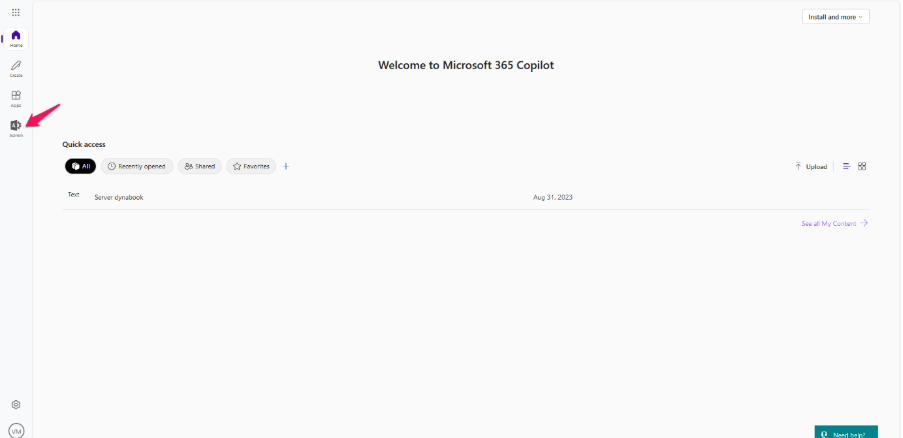
Step 3: In the left navigation, click Show All.

Step 4: Under Admin Centers, click Security.
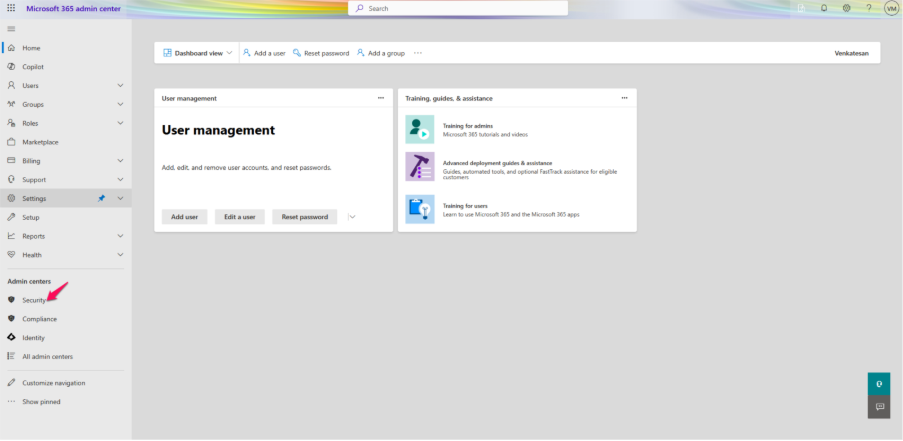
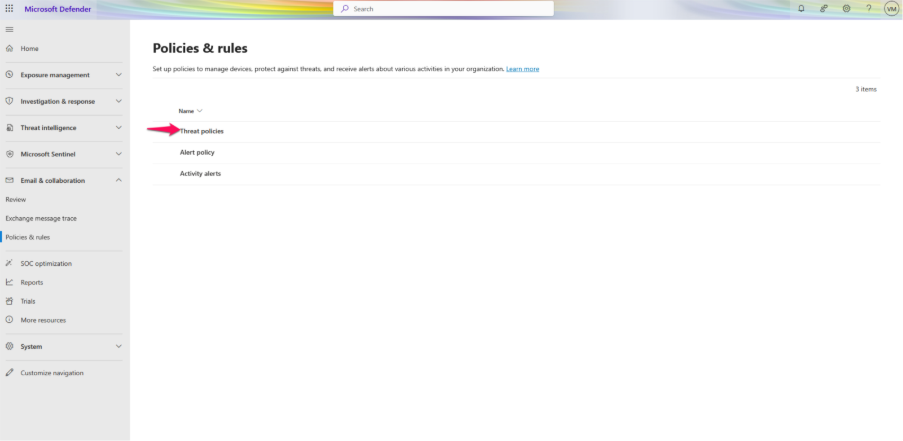
Step 5: Click Policies & Rules.

Step 6: Select Threat Policies.
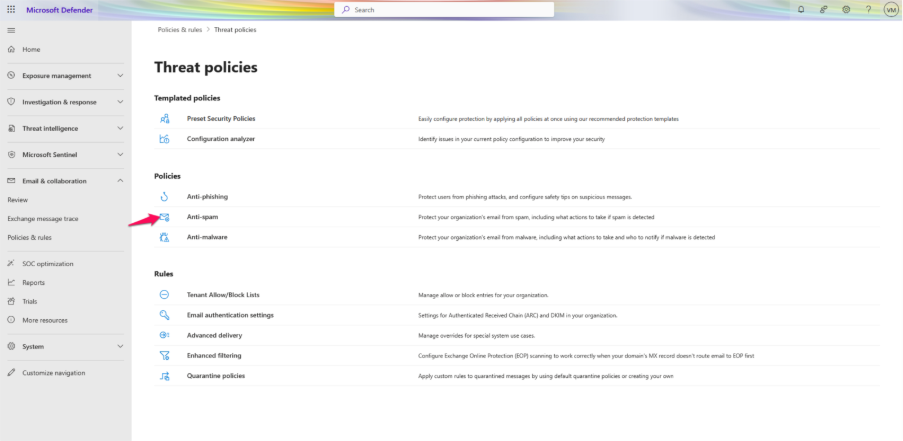
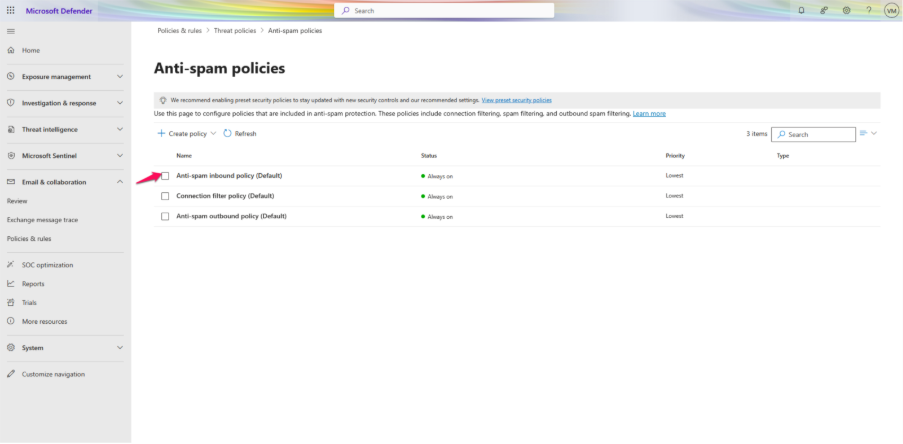
Step 7: Click Anti-Spam Policies.
Step 8: Select Anti-Spam Inbound Policy (Default).
Step 9: Scroll and select Edit Actions.
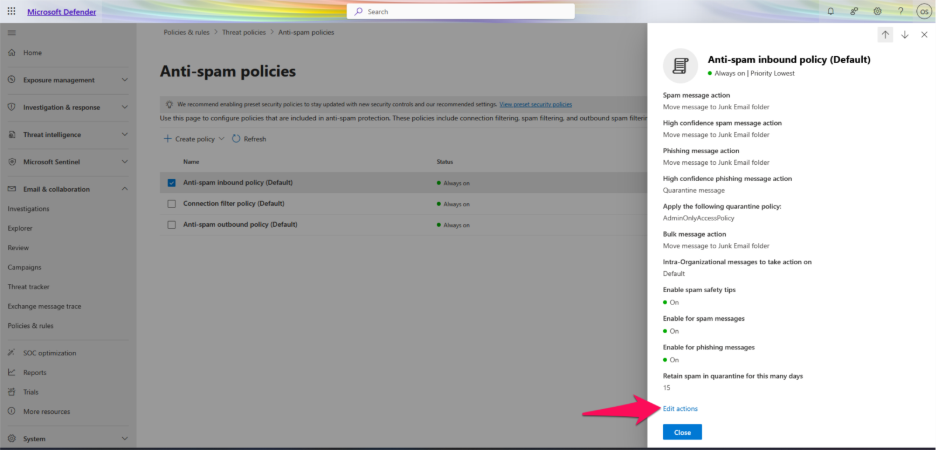
Step 10: Click enable zero-hour auto purge. (It is used to etect and neutralize phishing, spam, or malware messages that have already been delivered to Exchange Online mailboxes.)

Step 11: Click Save.
