Last reviewed: 21st August 2026
Quick Answer
SMTP Authentication allows Outlook 2016 to authenticate with your outgoing mail server before sending emails. By choosing My Outgoing Server (SMTP) requires authentication under the Outgoing Server tab in the account settings, you can activate it.
Steps to Enable SMTP Authentication in Outlook 2016
Step 1: Open Outlook 2016
Launch the Outlook 2016 application.
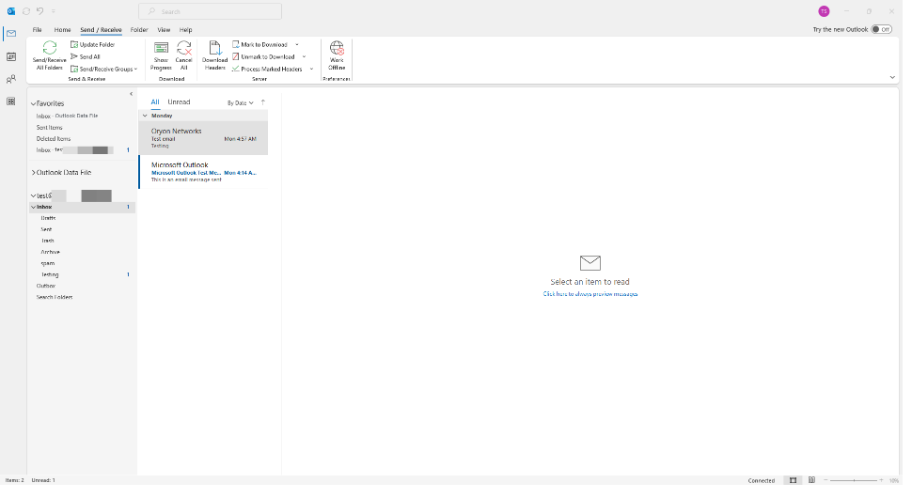
Step 2: Open Account Settings
Click File > Account Settings > Account Settings.
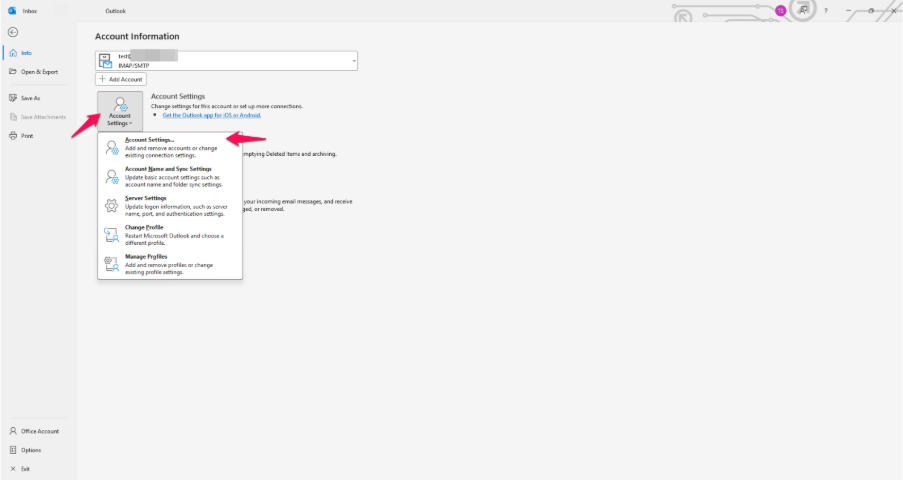
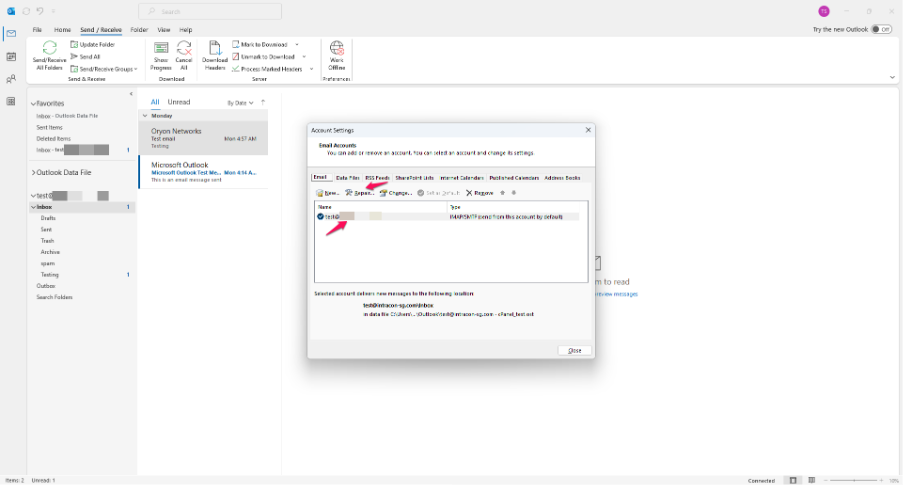
Step 3: Select the Email Account
Click Repair after selecting the email account you wish to modify.
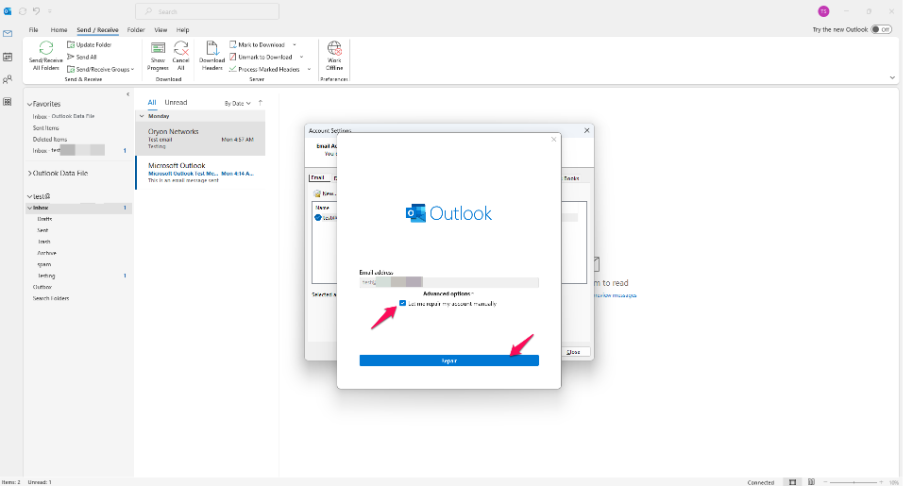
Step 4: Open More Settings
In the Repair Account window, tick Let me repair my account manually.
Step 5: Open the Outgoing Server Tab
Select the Outgoing Server tab.
Step 6: Enable SMTP Authentication
Tick My outgoing server (SMTP) requires authentication.
Step 7: Select Authentication Method
Choose “Use the same settings as my incoming mail server.”
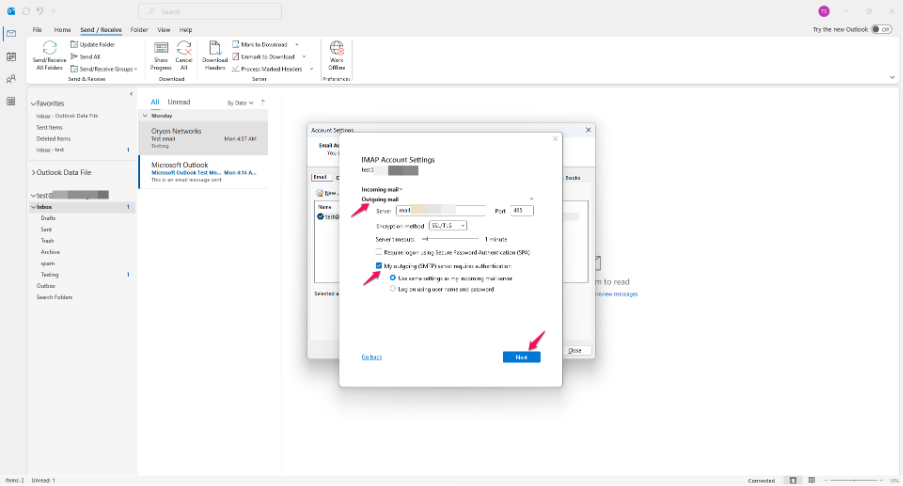
Alternatively, select Log on using and enter the SMTP username and password provided by your email administrator or hosting provider.
Step 8: Save the Settings
Click OK, then Next, and finally Finish to save the changes.
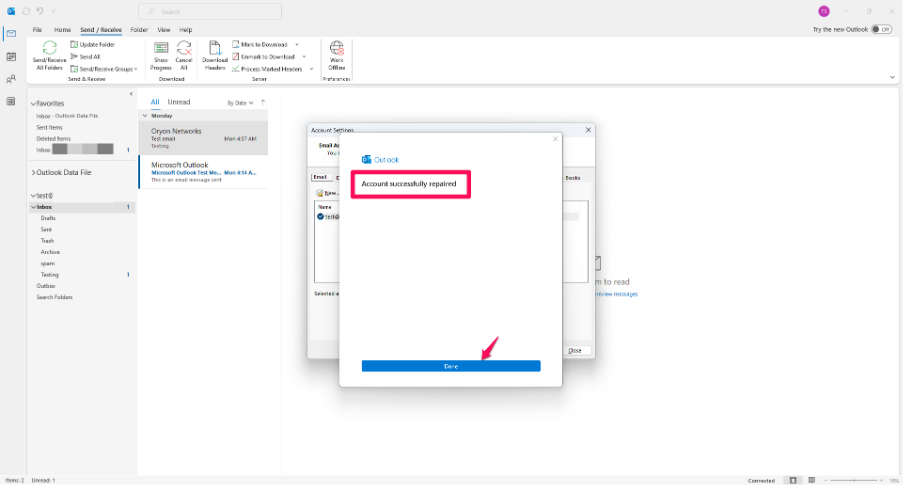
Step 9: Test Sending an Email
Send a test email to confirm that Outlook can successfully authenticate and send messages through the outgoing mail server.
Optional: Verify SMTP Port Settings
Step 1: Open More Settings
From the email account settings, click More Settings.
Step 2: Select the Advanced Tab
Click on Advanced.
Step 3: Verify the SMTP Port
Confirm the outgoing server settings provided by your mail provider:
- Port 587 with TLS (Recommended)
- Port 465 with SSL
- Port 25 (if permitted by the mail server)
Step 4: Save Changes
Click OK and complete the setup wizard.
Common Problems
Unable to Send Emails After Enabling SMTP Authentication
- Verify the SMTP username and password are correct.
- Confirm the SMTP server name is accurate.
- Check with your mail administrator that SMTP Authentication is enabled for the account.
Outlook Keeps Prompting for a Password
- Re-enter the account password.
- Ensure Remember password is selected.
- Verify that the account credentials have not expired.
SMTP Authentication Option is Greyed Out
- Ensure you have selected the correct email account.
- Check whether the account is managed by an administrator.
- Recreate the Outlook profile if necessary.
Error: Authentication Failed
- Verify the username and password.
- Check whether Multi-Factor Authentication (MFA) requires an app password.
- Confirm that SMTP AUTH is enabled on the mailbox if using Microsoft 365.
Test Email Fails
- Verify the SMTP server address and port number.
- Check firewall or antivirus software that may be blocking SMTP traffic.
- Confirm the encryption method matches the mail provider’s requirements.
Additional Information
SMTP Authentication helps prevent unauthorized users from sending emails through your mail server. Most email providers require SMTP Authentication to be enabled before Outlook can send emails successfully. Microsoft recommends using authenticated SMTP only where required and using modern authentication methods whenever possible.
Need help managing Microsoft 365 for your organisation?
Oryon provides Microsoft 365 licensing, migration, email configuration and ongoing technical support for businesses in Singapore.