Last reviewed: 20th August 2026
Quick Answer
You can export contacts from Outlook 2016 by using the Import and Export Wizard. The contacts can be exported to a CSV (Comma Separated Values) file, which can then be imported into another email application or Outlook profile.
Steps to Export Contacts from Outlook 2016
Step 1: Open Outlook 2016
Launch the Outlook 2016 application.
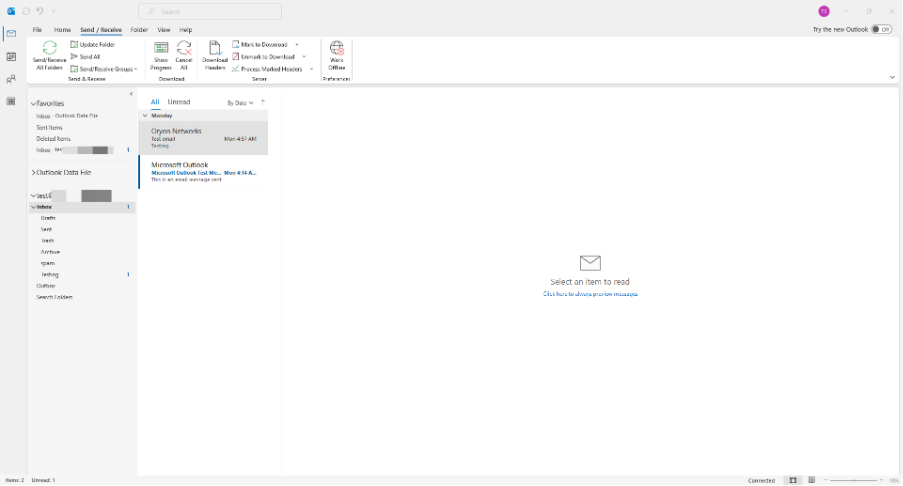
Step 2: Open the File Menu
Click File in the top-left corner of Outlook.
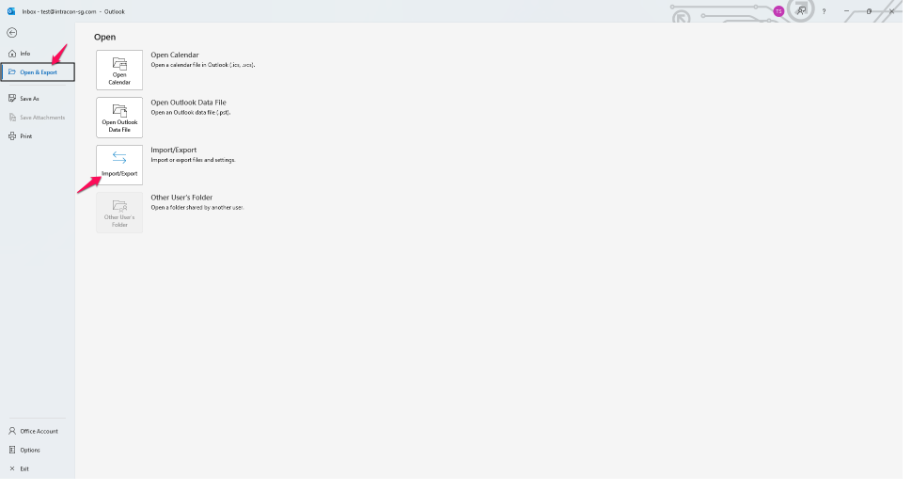
Step 3: Open Import and Export Wizard
Select Open & Export and then click Import/Export.
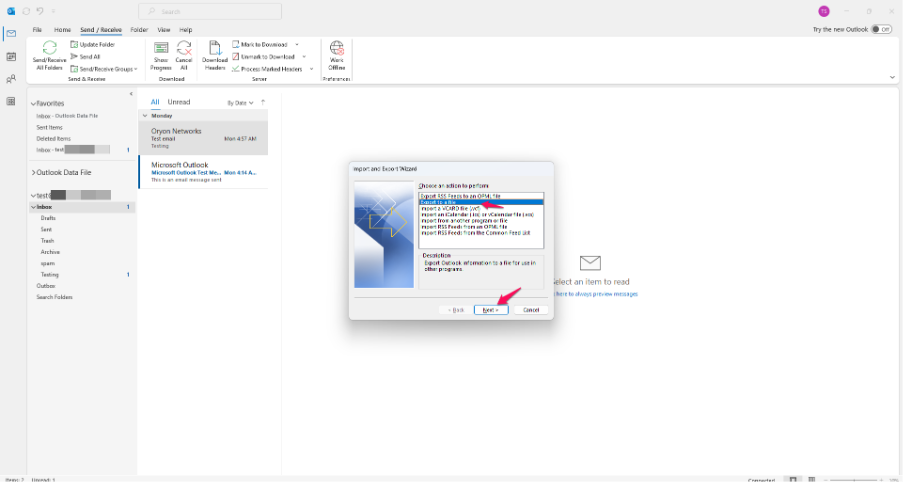
Step 4: Choose Export to a File
In the Import and Export Wizard, select Export to a file and click Next.
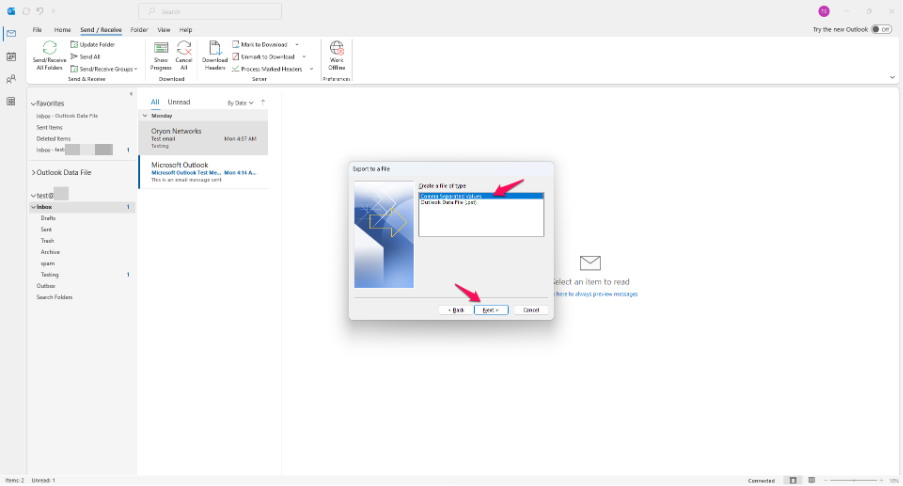
Step 5: Select File Type
Choose Comma Separated Values (CSV) and click Next.
Step 6: Select the Contacts Folder
Select the Contacts folder that contains the contacts you want to export and click Next.
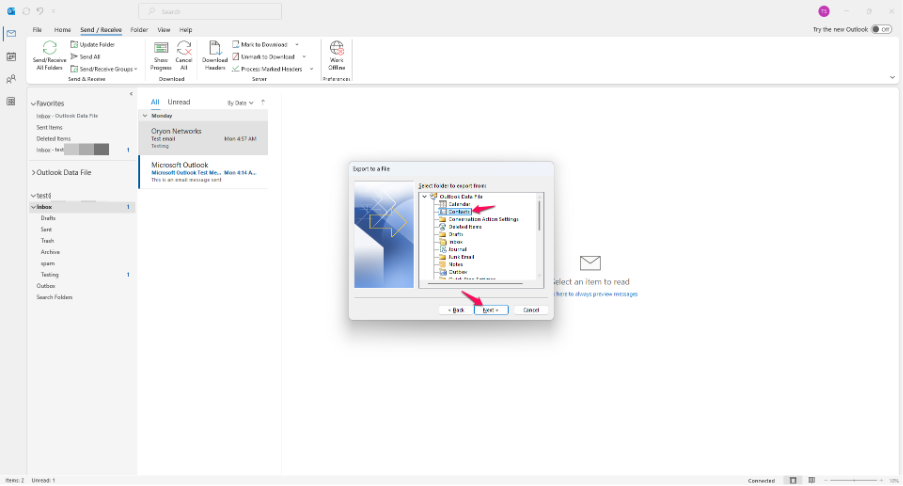
Step 7: Choose the Save Location
Click Browse, select a location to save the exported file, enter a file name, and click OK.
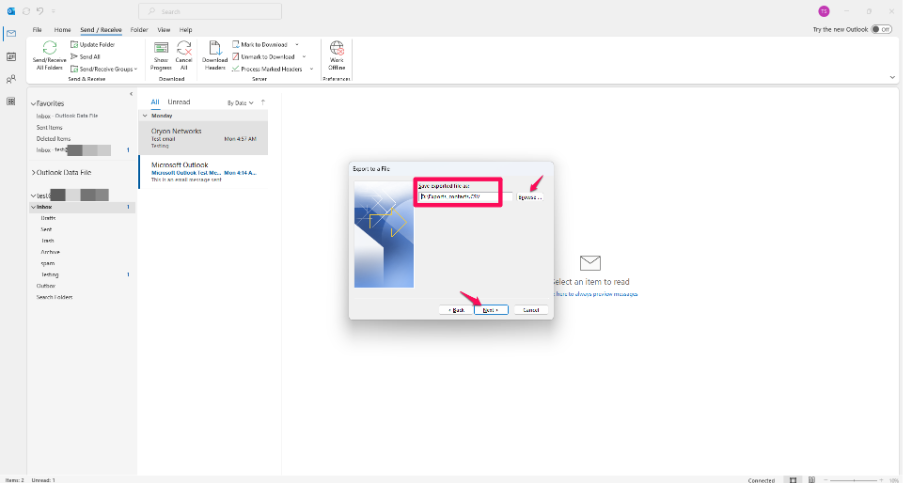
Step 8: Complete the Export
Click Next, then select Finish to begin the export process.
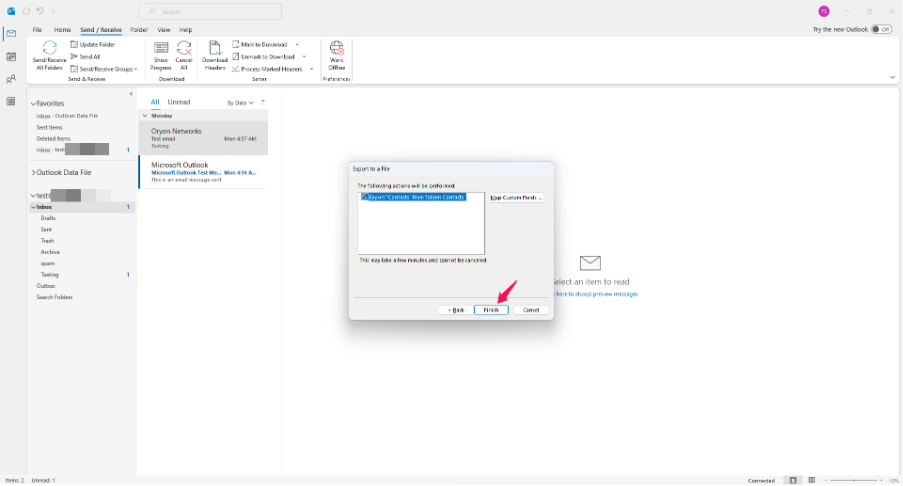
Step 9: Verify the Exported File
Navigate to the selected save location and confirm that the CSV file has been created successfully.
Alternative Method: Export All Outlook Data Including Contacts
Step 1: Open the File Menu
Click File > Open & Export > Import/Export.
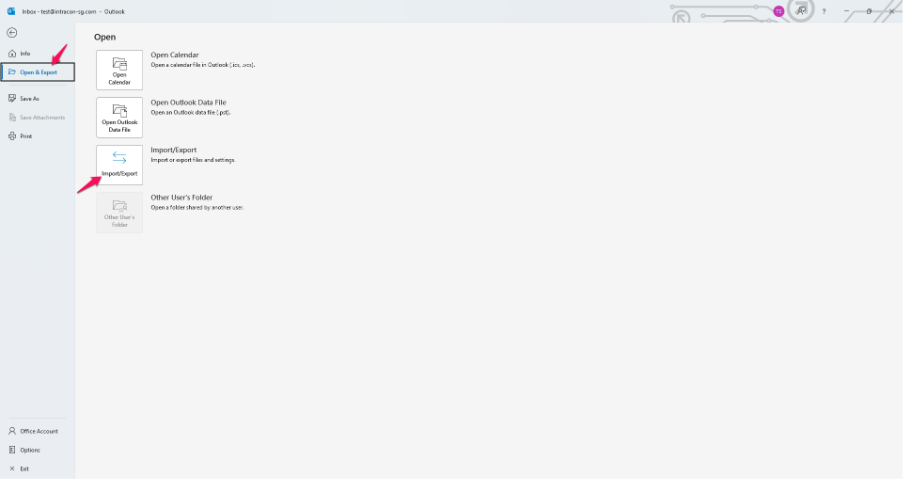
Step 2: Select Export to a File
Choose Export to a file and click Next.
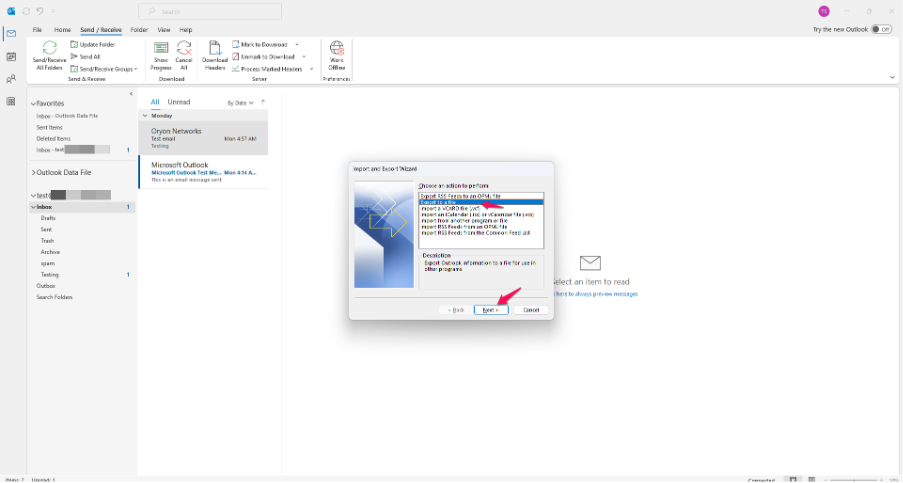
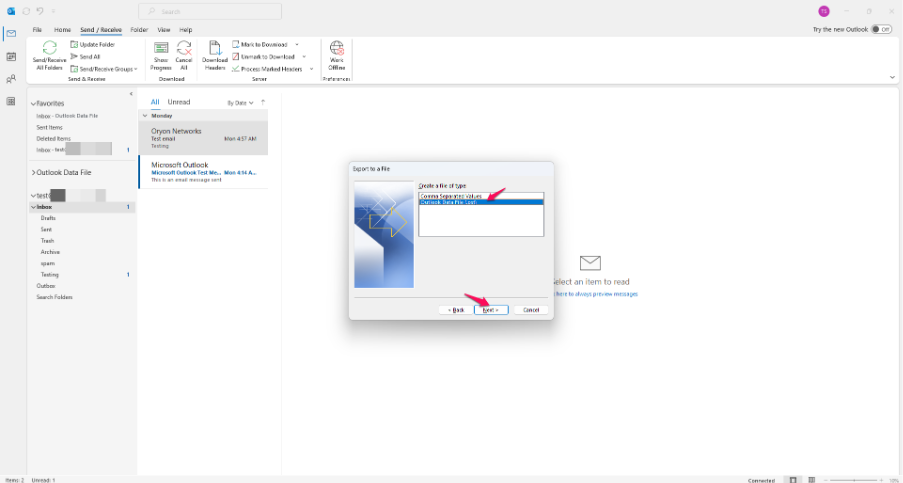
Step 3: Select Outlook Data File
Choose Outlook Data File (.pst) and click Next.
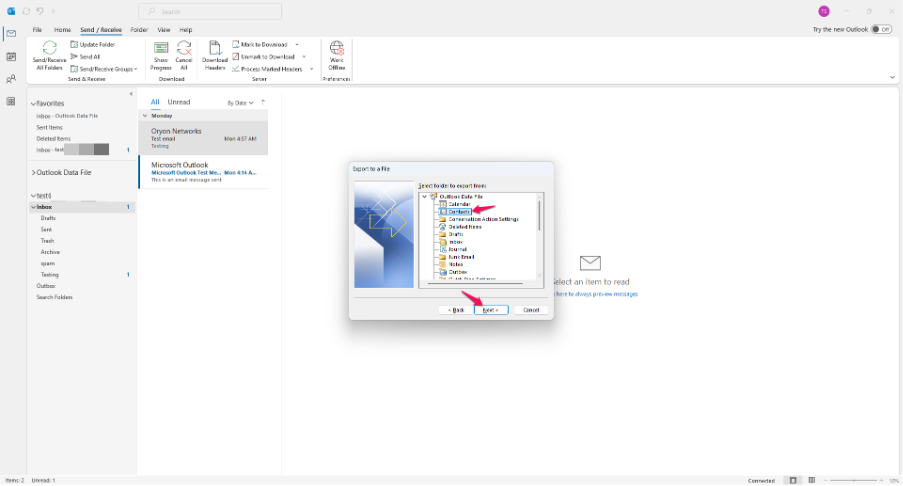
Step 4: Select the Mailbox
Select the mailbox or Contacts folder you want to export.
Step 5: Enable Subfolders (Optional)
Tick Include Subfolders if required.
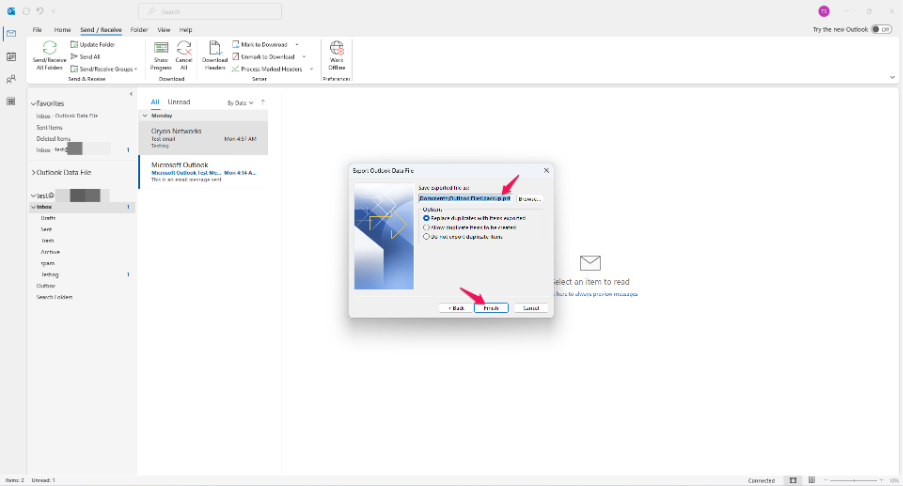
Step 6: Choose the Save Location
Browse to the destination folder and specify a file name.
Step 7: Complete the Export
Click Finish to create the PST file.
Common Problems
Import and Export Option is Missing
- Verify Outlook is fully loaded.
- Restart Outlook and try again.
- Check whether administrative restrictions have been applied.
Unable to Export Contacts
- Ensure you have permission to access the Contacts folder.
- Verify Outlook is connected to the mailbox.
- Close and reopen Outlook before retrying.
Exported File is Empty
- Confirm the correct Contacts folder was selected.
- Check whether contacts exist in the selected folder.
- Run the export process again and verify the destination folder.
Special Characters Display Incorrectly
- Save the file as a CSV format supported by the destination application.
- Open the CSV file using Microsoft Excel and verify the character encoding.
Contacts Missing After Export
- Ensure all contacts are stored in the selected Contacts folder.
- Verify there are no filters applied to the Contacts view.
- Consider exporting as a PST file to preserve all contact information.
Additional Information
CSV files are commonly used when migrating contacts to another email platform, while PST files are recommended when backing up Outlook data because they preserve additional contact properties and folder structure.
Need help managing Microsoft 365 for your organisation?
Oryon provides Microsoft 365 licensing, migration, email configuration and ongoing technical support for businesses in Singapore.