Step 1: Log in to your Microsoft Admin Panel.
Step 2: In the menu section, click on Guest User.

Step 3: In the Guest User section, click on Add a guest user. (You will be redirected to Microsoft Azure.)
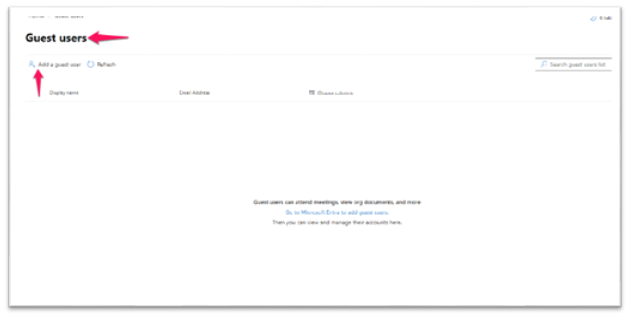
Step 4: In the Azure portal, click on Create User and enter all the required details.

Step 5: Select Guest under the User Type dropdown and click Create to complete the setup.

Step 6: Finally, the guest user will be displayed in your Microsoft Admin Panel.

Note: A Guest User in Office 365 is an external user who is granted limited access to your organization’s resources, such as files, Teams, SharePoint, or applications. This feature is useful for collaborating with partners, vendors, or contractors without providing them with a full user license. Guest users can be managed through the Microsoft Admin Centre and Azure Active Directory.)