Last reviewed: 17th August 2026
Quick Answer
You can add a new contact in Outlook 2016 by opening the People view, selecting New Contact, entering the contact details, and then clicking Save & Close.
Steps to Add a Contact in Outlook 2016
Step 1: Open Outlook 2016
Launch the Outlook 2016 application on your computer.
Step 2: Open the People View
Select the People icon from the navigation pane at the bottom of Outlook.
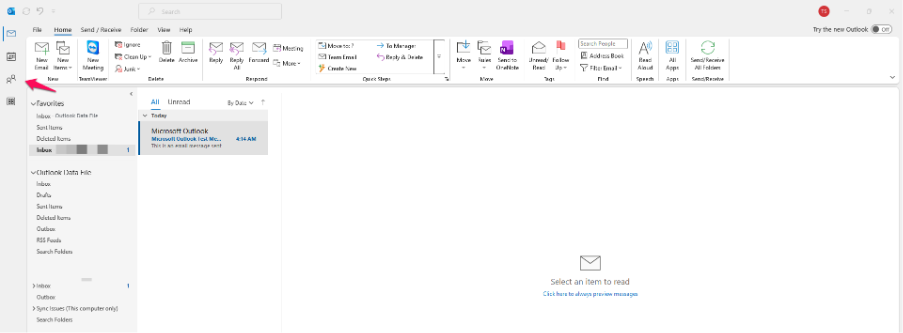
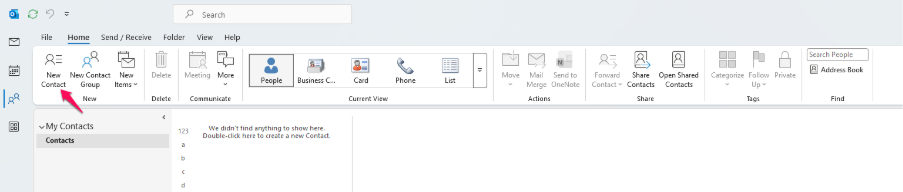
Step 3: Create a New Contact
Under the Home tab, click New Contact.
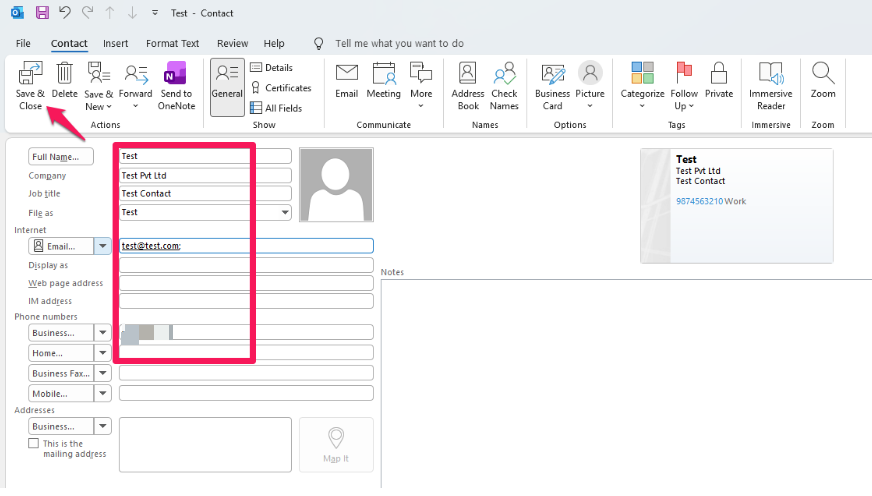
Step 4: Enter Contact Information
Fill in the required details such as:
- Full Name
- Email Address
- Company
- Job Title
- Phone Number
- Address
Step 5: Save the Contact
After entering the contact information, click Save & Close.
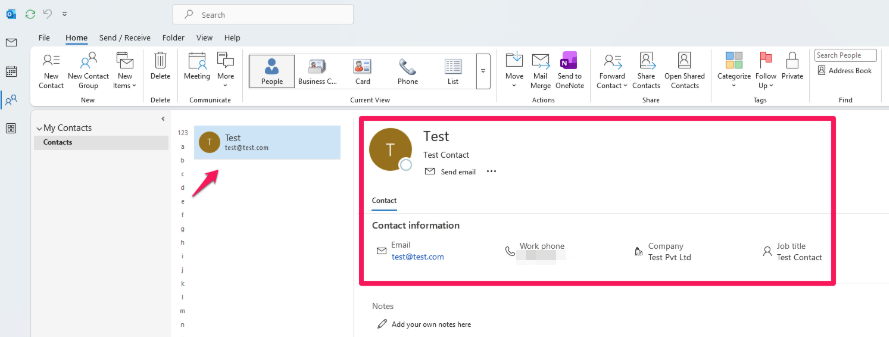
Step 6: Verify the Contact
The newly created contact will now appear in your Outlook Contacts list.
Alternative Method: Add a Contact from an Email Message
Step 1: Open the Email
Open an email from the sender you want to add to your contacts.
Step 2: Right-Click the Sender’s Name
Right-click the sender’s email address or name in the message header.
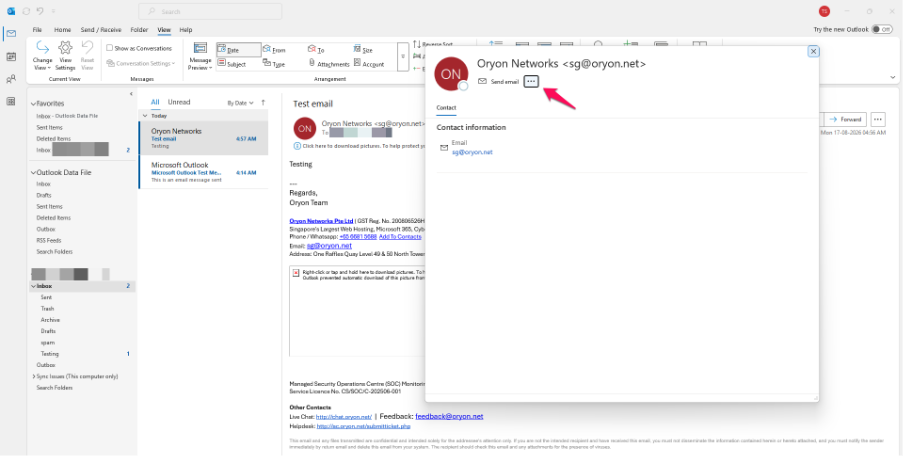
Step 3: Add to Outlook Contacts
Select Add to Outlook Contacts.
Step 4: Update Contact Information
Review and update any additional details if required.
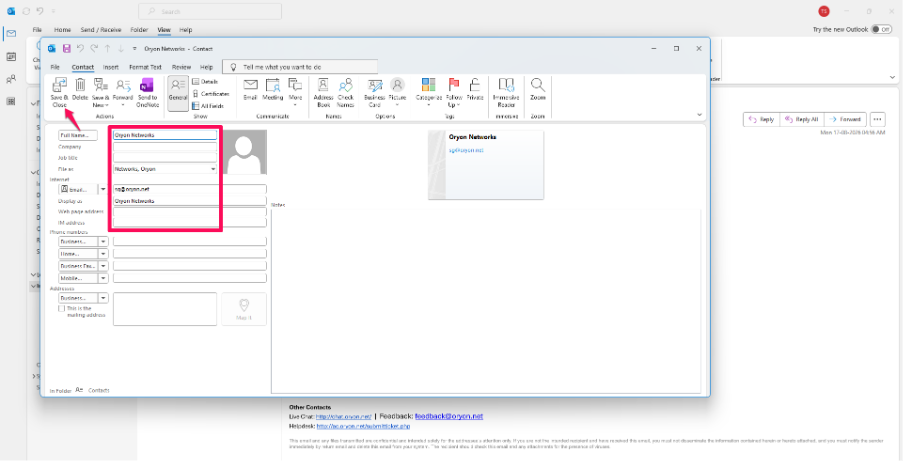
Step 5: Save the Contact
Click Save & Close to add the contact to your address book.
Common Problems
Unable to See the People Icon
- Ensure Outlook is fully loaded.
- Expand the navigation pane if it is minimized.
- Use the keyboard shortcut Ctrl + 3 to open the People view.
New Contact Option is Greyed Out
- Verify that you have selected the Contacts/People section.
- Restart Outlook and try again.
- Check whether your mailbox profile is functioning correctly.
Contact Does Not Appear After Saving
- Refresh the Contacts folder.
- Verify that the contact was saved in the correct Contacts folder.
- Search for the contact using the Search Contacts option.
Unable to Save Contact
- Ensure all mandatory fields are completed.
- Check your mailbox storage limits.
- Restart Outlook and try again.
Additional Information
Contacts stored in Outlook can be used for email addressing, calendar invitations, and synchronization with Microsoft Exchange and Microsoft 365 accounts.
Need help managing Microsoft 365 for your organisation?
Oryon provides Microsoft 365 licensing, migration, email configuration and ongoing technical support for businesses in Singapore.