

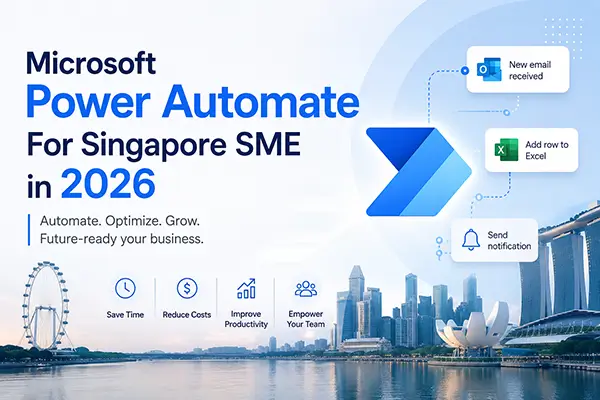
If you’re running a business in Singapore and already paying for Microsoft 365 Business Basic, Business Standard, or Business Premium, there’s a powerful automation tool sitting inside your subscription that you’re probably not using — Microsoft Power Automate.
Most Singapore SMEs don’t realise that Power Automate is already included at no extra cost with their existing Microsoft 365 licence. That means you can start automating repetitive tasks across Outlook, SharePoint, Teams, Excel, and Forms — today — without spending a single additional dollar.
In this guide, we’ll walk you through exactly what you get for free, how to set it up, and practical automation examples tailored for HR, finance, operations, and IT teams in Singapore.
What Is Microsoft Power Automate?
Microsoft Power Automate (formerly known as Microsoft Flow) is a cloud-based workflow automation platform that lets you create automated processes — called “flows” — between your favourite apps and services.
Every flow has two core components:
- Trigger — the event that starts the automation (e.g., a new email arrives, a form is submitted, a file is uploaded)
- Action — what happens next (e.g., send a notification, create a row in Excel, post a message in Teams)
Power Automate is part of the broader Microsoft Power Platform, which also includes Power Apps, Power BI, Power Pages, and Copilot Studio. Together, these tools enable Singapore businesses to build custom solutions, analyse data, and automate workflows — all with little to no coding.
Is Power Automate Really Free with Microsoft 365?
Yes. If your organisation has any of the following Microsoft 365 licences, Power Automate cloud flows with standard connectors are already included at no additional cost:
| Microsoft 365 Plan | Power Automate Included? | Desktop Apps Included? |
|---|---|---|
| Business Basic | ✅ Yes — Standard connectors | ❌ Web/mobile only |
| Business Standard | ✅ Yes — Standard connectors | ✅ Yes |
| Business Premium | ✅ Yes — Standard connectors | ✅ Yes |
| Microsoft 365 E3 / E5 | ✅ Yes — Standard connectors | ✅ Yes |
| Office 365 E1 / E3 / E5 | ✅ Yes — Standard connectors | Varies |
Tips: You’re already paying for this capability. Every user with a Microsoft 365 licence can log in to https://make.powerautomate.com and start building flows immediately.
What Exactly is Included in Microsoft 365 Business Plans
The Power Automate capability included with your Microsoft 365 subscription provides a solid foundation for automating everyday business tasks. Here’s what’s included — and what’s not:
What’s Included
| Feature | Details |
|---|---|
| Cloud flows | Automated, scheduled, and instant (button) flows |
| Standard connectors | Outlook, SharePoint, Teams, OneDrive, Excel, Forms, Planner, Approvals, and more |
| Pre-built templates | Hundreds of ready-to-use templates for common scenarios |
| Shared flows | Share automations with colleagues |
| Flow runs | Approximately 6,000 API requests per user per day |
| Approvals | Built-in approval workflows respondable from email, Teams, or mobile |
| On-premises data gateway | Limited connectivity to on-premises data sources |
What’s NOT Included (Requires Paid Upgrade)
| Feature | Required Licence |
|---|---|
| Premium connectors (Salesforce, SAP, SQL Server, HTTP | Power Automate Premium |
| Desktop flows / RPA (attended | Power Automate Premium |
| Unattended RPA bots | Power Automate Process |
| AI Builder (document processing, prediction | Power Automate Premium or add-on |
| Custom connectors | Power Automate Premium |
| Process mining | Power Automate Premium |
| Dataverse storage | Power Automate Premium (250 MB database + 2 GB file) |
Important licensing note: The moment you add even one premium connector to a flow, every user who triggers or runs that flow needs a premium licence. This is the most common licensing mistake Singapore businesses make. Plan your connectors carefully.
Standard Connectors You Can Use for Free
Standard connectors are the backbone of Power Automate’s free capability. These cover the most commonly used Microsoft 365 services and several popular third-party services:
Microsoft 365 Connectors
- Office 365 Outlook — Send emails, manage calendar events, trigger on incoming mail
- SharePoint — Read, create, update, and delete list items and documents
- Microsoft Teams — Post messages, create channels, manage memberships
- OneDrive for Business — Create, read, move, copy files
- Excel Online (Business) — Read and write rows in Excel tables
- Microsoft Forms — Trigger flows on new form responses
- Microsoft Planner — Create and manage tasks
- Office 365 Users — Look up user profile information
- Microsoft To Do — Create and manage to-do items
- Power BI — Refresh datasets and trigger on data alerts
- Approvals — Built-in approval engine with email and Teams integration
Built-in Capabilities
- Variables — Initialise, set, and manipulate data within flows
- Data Operations — Parse JSON, compose, filter arrays, join, select
- Control — Conditions, loops, switch, parallel branches, error handling
- Schedule — Run flows on a recurring schedule (every minute, hour, day, week)
- Manual Trigger — Start flows with a button press from the Power Automate app
How to Access Power Automate (Step-by-Step)
Getting started takes less than five minutes. Here’s how:
Step 1: Sign In
Go to https://make.powerautomate.com and sign in with your Microsoft 365 work account (e.g., yourname@yourcompany.com.sg).
Step 2: Explore Templates
Click Templates in the left navigation. You’ll find hundreds of pre-built templates organised by category — approvals, email, notifications, social media, data collection, and more.
Step 3: Create Your First Flow
Click + Create and choose from:
- Automated cloud flow — Triggered by an event (e.g., new email, new file)
- Instant cloud flow — Triggered manually with a button
- Scheduled cloud flow — Runs on a set schedule (e.g., every Monday at 9am SGT)
Step 4: Select Your Trigger and Actions
Choose a trigger (e.g., “When a new response is submitted” in Microsoft Forms), then add actions (e.g., “Send an email” via Outlook, “Create item” in SharePoint).
Step 5: Test and Turn On
Use the Test button to run your flow with sample data. Once it works, toggle it on and it runs automatically.
10 Practical Power Automate Use Cases for Singapore Businesses
Here are real-world automation examples that Singapore SMEs can implement today using only standard connectors (no additional cost):
For Business Owners & Directors
1. Daily Business Summary Email
Trigger: Schedule — Every weekday at 8:00am SGT Actions: Pull key data from SharePoint lists (sales pipeline, outstanding tasks, pending approvals) and compile into a single summary email sent to your inbox.
Business impact: Start every day with a clear operational snapshot without chasing updates from department heads.
2. Automated Approval Workflows
Trigger: When a new item is created in a SharePoint list (e.g., purchase request, leave request, expense claim) Actions: Send an approval request to the relevant manager via Teams/email → If approved, update the SharePoint list and notify the requestor → If rejected, notify with comments.
Business impact: Eliminate paper-based approvals and WhatsApp chasing. Every approval is tracked, timestamped, and auditable — critical for Singapore’s regulatory environment.
For HR Teams
3. New Employee Onboarding Automation
Trigger: When a new item is added to an “Onboarding” SharePoint list Actions: Send a welcome email with company handbook (from OneDrive) → Create tasks in Planner for IT (set up laptop), Admin (prepare access card), and Finance (set up payroll) → Post a welcome message in the Teams “General” channel.
Business impact: Ensure a consistent, professional onboarding experience for every new hire. No more forgotten steps. [reality-tech.com]
4. Leave Request & Approval System
Trigger: When a Microsoft Form is submitted (leave request form) Actions: Send approval to the employee’s manager → On approval, log the leave in a SharePoint list → Send confirmation to the employee → Update a shared team calendar.
Business impact: Replace manual leave tracking spreadsheets. Perfect for Singapore SMEs with 10–200 employees who don’t yet need a full HRIS.
For Finance Teams
5. Invoice Receipt and Logging
Trigger: When an email arrives in a shared mailbox with an attachment (e.g., invoices@yourcompany.com.sg) Actions: Save the attachment to a “Pending Invoices” folder in SharePoint → Create a new row in an Excel tracking sheet with the sender, date, and subject → Notify the finance team via Teams.
Business impact: Never lose an invoice again. Every invoice is automatically filed and logged the moment it arrives.
6. Expense Claim Approval
Trigger: When a Microsoft Form is submitted (expense claim with receipt photo upload) Actions: Send an approval request to the finance manager → On approval, log the claim in a SharePoint list → Notify the claimant of approval status.
Business impact: Digitise expense claims end-to-end. Particularly valuable for Singapore businesses managing MOM-compliant reimbursement records.
For Operations Managers
7. Task Assignment and Follow-Up
Trigger: When an item is created in a SharePoint list (e.g., service request, maintenance ticket) Actions: Assign a Planner task to the relevant team member → Send an email notification → If not completed within 48 hours, send a reminder → When marked complete, notify the requestor.
Business impact: Automate the entire task lifecycle. Ideal for property management, facilities, logistics, and service-based businesses common in Singapore.
8. Weekly Status Report Compilation
Trigger: Schedule — Every Friday at 4:00pm SGT Actions: Pull updates from a SharePoint “Weekly Updates” list → Compile into an HTML email → Send to the management team.
Business impact: Eliminate the Friday afternoon email chase. Team members update their status in SharePoint throughout the week; the report compiles itself.
For IT Teams & Administrators
9. New User Setup Notification Chain
Trigger: When a new user is added to Microsoft 365 (via the Office 365 Users connector) Actions: Post a notification in the IT Teams channel → Create a Planner task for licence assignment → Create a Planner task for security group membership → Send a welcome email with IT policies.
Business impact: Standardise IT onboarding. Ensure no user is set up without proper security group assignment and policy acknowledgement.
10. SharePoint Document Expiry Alerts
Trigger: Schedule — Daily at 9:00am SGT Actions: Query a SharePoint list for documents with an expiry date within the next 30 days → Send an email notification to the document owner → Post a summary in the relevant Teams channel.
Business impact: Critical for Singapore businesses managing ISO 27001 documentation, PDPA policies, or contract renewals.
Power Automate Free vs Premium: When Should You Upgrade?
For most Singapore SMEs with fewer than 200 employees, the free tier included with Microsoft 365 is sufficient for 80% of everyday automation needs.
However, you should consider upgrading to Power Automate Premium (US$15/user/month) when:
| Scenario | Why You Need Premium |
|---|---|
| You need to connect to Salesforce, SAP, or Xero | These are premium connectors |
| You need to connect to a SQL Server database | Premium connector |
| You need to call custom REST APIs (HTTP connector) | Premium connector |
| You want to automate desktop applications (e.g., legacy accounting software) | Requires attended RPA (desktop flows) |
| You need AI Builder for document processing (e.g., auto-extract | Premium add-on |
| You’re hitting API request limits with high | Premium provides higher limits |
Quick Licensing Cost Comparison
| Scenario | Monthly Cost |
|---|---|
| 10 users on M365 Business Standard (Power Automate included) | S$0 additional |
| 3 users needing premium connectors | ~ US$15 × 3 |
| 1 unattended RPA bot for invoice processing | ~ US$150 × 1 |
| Full premium for all 50 users | ~ US$15 × 50 |
Tip: You don’t need to upgrade every user. Only the users who create or trigger premium flows need a premium licence. A flow built by one premium-licensed user can benefit the entire team if it runs under that user’s context.
PDPA Compliance
When building Power Automate flows that process personal data (employee records, customer information, etc.), ensure your flows comply with Singapore’s Personal Data Protection Act (PDPA):
- Store data in approved locations (SharePoint/OneDrive within your Microsoft 365 tenant)
- Limit data access using SharePoint permissions and sensitivity labels
- Don’t send personal data to unapproved third-party services via connectors
- Log and audit data processing activities using flow run history
- Apply Data Loss Prevention (DLP) policies in the Power Platform admin centre to block unapproved connectors
Time Zone Configuration
When setting up scheduled flows, always configure the time zone to (UTC+08:00) Singapore to ensure your automations trigger at the correct local time. This is a common oversight that causes flows to run 8 hours early or late.
Best Practices for Getting Started
- Start small. Pick one painful, repetitive process (e.g., leave approvals, invoice filing) and automate it first. Don’t try to automate everything at once.
- Use templates. Power Automate has hundreds of pre-built templates. Search for your use case before building from scratch.
- Test thoroughly. Always use the Test function before turning a flow on. Check edge cases — what happens if a field is blank? What if the approver is on leave?
- Name your flows clearly. Use descriptive names like “HR — Leave Request Approval” instead of “My Flow 1”. Future you (and your colleagues) will thank you.
- Set up DLP policies. If you’re an IT admin, configure Data Loss Prevention policies in the https://admin.powerplatform.microsoft.com to control which connectors users can access. This prevents accidental data leakage.
- Monitor flow runs. Regularly check the flow run history for failures. Power Automate sends email notifications for failed runs, but proactive monitoring catches issues faster.
- Document your flows. Keep a simple register (even a SharePoint list) of all active flows, their owners, and their purpose. This is essential for business continuity and compliance audits.
Frequently Asked Questions
Is Power Automate free forever?
Yes — the Power Automate capability included with your Microsoft 365 subscription has no time limit and no separate expiry. As long as you maintain your Microsoft 365 licence, you have access to cloud flows with standard connectors. There is also a 30-day free trial of premium features if you want to test premium connectors and RPA before committing.
How many flows can I create?
With a Microsoft 365 licence, you can own up to 600 cloud flows outside of solutions. Flows created inside Dataverse solutions are unlimited (though this typically applies to premium-licensed users).
Can multiple people use the same flow?
Yes. You can share flows with colleagues. The flow runs under the owner’s connection credentials, so only the owner needs the appropriate connector access.
Does Power Automate work on mobile?
Yes. The Power Automate mobile app (available on iOS and Android) lets you trigger instant flows, approve requests, and monitor flow runs on the go — perfect for Singapore business owners who are always on the move.
What happens if I exceed my API limits?
Your flows may be throttled (slowed down) or temporarily paused. For most SMEs using standard connectors for typical business processes, this is unlikely to happen. Heavy automation scenarios may require a premium licence for higher limits.
Summary: Your Power Automate Action Plan
| Step | Action | Timeline |
|---|---|---|
| 1 | Log in to https://make.powerautomate.com with your M365 account | Today |
| 2 | Identify your top 3 most repetitive manual processes | This week |
| 3 | Search Power Automate templates for matching solutions | This week |
| 4 | Build and test your first flow (start with approvals or notifications) | Week 1–2 |
| 5 | Roll out to your team and gather feedback | Week 2–3 |
| 6 | Evaluate whether premium connectors are needed | Month 2 |
| 7 | Explore IMDA grants if upgrading or engaging a consultant | Month 2–3 |
Need Help Getting Started?
At Oryon Networks, we help Singapore businesses unlock the full potential of their Microsoft 365 subscriptions — including Power Automate. Whether you need help building your first flow, designing a company-wide automation strategy, or upgrading to premium capabilities, our team of Microsoft-certified consultants is here to help.
📧 Contact us for a free consultation on how Power Automate can save your team hours every week.

