

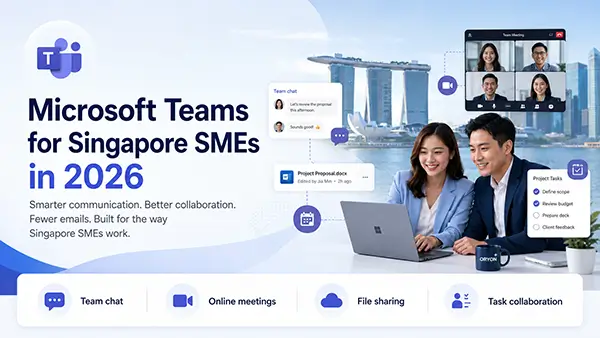
A practical, no-nonsense guide for business owners, directors, operations managers, and department heads who already have Microsoft 365 — but are not getting the most out of Microsoft Teams.
Why Many SMEs in Singapore Underuse Microsoft Teams
Here is something we see all the time at Oryon Networks: a Singapore SME signs up for Microsoft 365 Business Standard, installs Outlook, starts using Word and Excel — and completely ignores Microsoft Teams.
It is not because Teams is difficult. It is because nobody showed them what it can actually do for their business.
Most SME owners in Singapore are busy running operations, managing staff, handling customers, and keeping costs under control. Learning a new tool feels like one more thing on an already full plate. So Teams sits there, unused, while the team continues to rely on a patchwork of email threads, WhatsApp group chats, shared Google Drive folders, and the occasional Zoom call.
The result? Important messages get buried in inboxes. Files get lost between email attachments and personal drives. Meeting notes disappear. Approvals take days instead of minutes. And staff working outside the office feel disconnected.
The irony is that Microsoft Teams — which is already included in most Microsoft 365 Business plans — can solve almost all of these problems. You are already paying for it. You just need to start using it properly.
This guide will show you how.
What Is Microsoft Teams in Simple Business Terms
Forget the technical jargon. Here is what Microsoft Teams actually is:
Microsoft Teams is a single app where your entire company can chat, meet, share files, collaborate on documents, manage tasks, and work with external partners — all in one place.
Think of it as your digital office. Instead of walking over to someone’s desk to ask a question, you send a quick chat message. Instead of booking a meeting room, you start a video call. Instead of emailing a document back and forth, you open it together in Teams and edit it at the same time.
Teams is available on your computer (Windows and Mac), your web browser, and your mobile phone (iOS and Android). It works wherever you work — in the office, at home, at a client site, or on the MRT.
According to Microsoft’s official service description, Teams is “the hub for teamwork in Microsoft 365,” enabling instant messaging, audio and video calling, online meetings, mobile experiences, and file collaboration — all integrated with the rest of Microsoft 365.
Microsoft Teams vs Outlook vs SharePoint vs OneDrive — What Is the Difference?
This is one of the most common questions we get from Singapore SME customers. If I already have Outlook, why do I need Teams? And what about SharePoint and OneDrive?
Here is the simplest way to understand it:
Outlook — Your Formal Mailbox
Outlook is for email — formal communication with customers, vendors, government agencies, and external parties. Think of it like your business letterbox. You use it for sending quotes, invoices, proposals, and official correspondence. Outlook also manages your calendar and meeting invitations.
Microsoft Teams — Your Office Communication Hub
Teams is for real-time internal collaboration — quick chats with colleagues, department discussions, video meetings, file sharing within your team, and project coordination. Think of it as your open-plan office floor where people talk, share ideas, and get work done together.
SharePoint — Your Company File Library
SharePoint is your company-wide document management system. It stores policies, templates, SOPs, shared resources, and departmental files in an organised, searchable structure. Think of it as your company filing cabinet — structured, governed, and accessible to the right people.
OneDrive — Your Personal Work Drive
OneDrive is your personal cloud storage within Microsoft 365. It is where you save your own working files, drafts, and documents before sharing them with others. Think of it as your personal desk drawer in the cloud.
How They Work Together
Here is the important part: these tools are not separate silos. They are designed to work together.
When you share a file in a Teams channel, it is actually stored in SharePoint behind the scenes. When you share a file in a Teams private chat, it is stored in your OneDrive. When someone schedules a Teams meeting, it appears in your Outlook calendar. When Planner tasks are assigned in Teams, they sync to Microsoft To Do.
Understanding this integration is key to using Microsoft 365 effectively. You do not need to choose between them — you use each one for what it does best.
Common SME Use Cases for Microsoft Teams
Let us get practical. Here are the real ways Singapore SMEs can use Microsoft Teams every day.
Internal Company Chat
Instead of sending an email that says “Can you check this?” and waiting hours for a reply, you send a quick Teams chat message. You get an answer in minutes. For quick questions, status updates, and informal coordination, chat is faster and more efficient than email.
You can have one-to-one chats, group chats, and even pin important conversations so they are easy to find later.
Department Channels
Create a Team for each department — Sales, Operations, HR, Finance, IT — and set up channels within each Team for specific topics. For example, your Sales team might have channels for Leads, Proposals, and Customer Feedback. Your HR team might have channels for Recruitment, Leave Requests, and Company Announcements.
Channels keep conversations organised by topic, so nothing gets lost in a single long chat thread.
Online Meetings and Video Calls
Teams supports online meetings with up to 300 participants on Business plans, with meetings lasting up to 30 hours. You can schedule meetings from Outlook or directly within Teams, share your screen, record the meeting, use virtual backgrounds, and even enable live captions.
For Singapore SMEs with staff in different locations — or those meeting with overseas clients — Teams meetings replace the need for separate video conferencing tools.
File Sharing and Collaboration
Instead of emailing documents back and forth (and ending up with five different versions), upload files to a Teams channel. Everyone in the channel can access the latest version. Multiple people can even edit the same Word, Excel, or PowerPoint file at the same time using real-time co-authoring.
Files shared in Teams channels are stored in SharePoint, which means they are backed up, version-controlled, and searchable.
Project Discussions
For cross-departmental projects — such as a website redesign, office relocation, or product launch — create a dedicated Team or channel. Keep all project-related conversations, files, meeting notes, and task lists in one place. No more hunting through email threads to find that one attachment from three weeks ago.
Sales Team Coordination
Your sales team can use Teams to share lead updates, discuss pricing, coordinate customer follow-ups, and quickly get approval from management on special deals. A dedicated Sales channel means everyone on the team stays informed without clogging up the company email.
HR Announcements
HR can use a company-wide Team to post announcements — new hires, policy updates, public holiday schedules, team-building events. Instead of sending mass emails that nobody reads, HR posts in a channel where staff can react, comment, and ask questions.
Finance and Management Approval Discussions
Finance teams can use Teams for quick approval discussions — expense claims, vendor payments, budget requests. Instead of chasing signatures via email, a quick chat or channel post gets the right people involved immediately. For more structured approvals, the Workflows app in Teams lets you automate approval processes without any coding.
Working with External Customers, Vendors, and Partners
Teams supports two ways to collaborate with people outside your organisation:
- External access — allows your staff to chat, call, and meet with people in other Microsoft 365 organisations without adding them to your tenant. Best for casual communication.
- Guest access — allows you to invite external people into a specific Team, where they can participate in channels, chats, meetings, and access shared files. Best for ongoing project collaboration.
For example, if you are working with a marketing agency or an IT vendor, you can add them as guests to a project Team so they can access relevant files and discussions — without giving them access to your entire organisation.
Mobile Access for Staff Outside the Office
The Teams mobile app gives staff full access to chats, meetings, files, and channels from their phone. For Singapore SMEs with delivery drivers, site supervisors, sales reps, or remote workers, this means everyone stays connected — whether they are at the warehouse, a customer site, or working from home.
How Teams Helps Reduce Email Overload
If your inbox has hundreds of unread emails, you are not alone. Most Singapore SME employees spend a significant portion of their day managing email — and much of it is internal communication that does not need to be an email.
Teams reduces email overload by moving internal conversations out of the inbox and into organised channels and chats. Here is what changes:
- Quick questions → Teams chat instead of email
- Department updates → Channel posts instead of mass emails
- File sharing → Upload to Teams instead of email attachments
- Meeting coordination → Schedule directly in Teams instead of email chains
- Status updates → Post in a channel instead of “reply all”
The rule of thumb is simple: use email for external and formal communication, and use Teams for everything internal.
This does not mean email goes away. Outlook remains essential for customer communication, vendor correspondence, and formal business matters. But by moving internal chatter to Teams, your inbox becomes manageable again.
How Teams Works with SharePoint, OneDrive, Outlook, Calendar, Planner, and Microsoft 365
One of the biggest advantages of Microsoft Teams for SMEs is that it is not a standalone tool — it is deeply integrated with the rest of Microsoft 365.
SharePoint
Every Team you create automatically gets a SharePoint site. Files shared in Teams channels are stored in SharePoint. This means you get version history, search, permissions management, and compliance features — all without any extra setup.
OneDrive
Files shared in private Teams chats are stored in your OneDrive. You can also share OneDrive files directly within Teams conversations.
Outlook and Calendar
Teams meetings appear in your Outlook calendar. You can schedule Teams meetings from Outlook, and meeting invitations include a “Join Microsoft Teams Meeting” link that works for both internal and external participants.
Planner
Microsoft Planner integrates directly into Teams as a tab in any channel. You can create task boards, assign tasks to team members, set due dates, and track progress — all within Teams. This is ideal for project management, marketing campaigns, or any workflow that needs task tracking.
Microsoft To Do
Tasks assigned to you in Planner sync to Microsoft To Do, giving you a single personal task list across all your projects.
Microsoft Loop
Loop components can be shared in Teams chats, allowing multiple people to co-edit tables, checklists, and notes in real time — right inside the chat window.
Workflows (Power Automate)
The Workflows app in Teams lets you automate routine tasks — approval requests, notifications, status updates — using natural language descriptions. No coding required.
Best Practices for Setting Up Teams Properly
Getting Teams right from the start saves you from a messy, confusing workspace later. Here are the best practices we recommend to our Singapore SME customers:
1. Start with Fewer Teams, Not More
A common mistake is creating a new Team for every project, meeting, or initiative. Within months, you end up with 30 Teams, half of them inactive, and nobody can find anything.
For a small business with 5 to 30 employees, three to five Teams is usually enough. Start with Teams that mirror your actual company structure — one per department, plus one company-wide Team.
2. Use Channels to Organise Topics Within a Team
Instead of creating a new Team for every topic, use channels within an existing Team. For example, your Marketing Team might have channels for Social Media, Content Calendar, Campaign Planning, and General Announcements.
Start with two to four channels per Team. More than six or seven channels means people stop checking all of them.
3. Set Up Channel Tabs
Pin frequently used files, websites, Planner boards, or SharePoint lists as tabs at the top of a channel. This puts important resources one click away instead of buried in a file list.
4. Establish Clear Guidelines
Before rolling Teams out to the whole company, establish simple guidelines:
- Where should staff post different types of messages?
- What goes in email vs. Teams?
- How should files be named and organised?
- Who owns each Team?
5. Assign Team Owners
Every Team should have at least one owner who is responsible for managing membership, reviewing channels, and keeping things organised.
6. Use @Mentions Wisely
Use @mentions to notify specific people or an entire channel. But do not overuse them — constant @mentions become noise, and people start ignoring them.
7. Archive Inactive Teams
Schedule reviews every 6 to 12 months. Archive or delete Teams that are no longer active. This keeps the workspace clean and reduces confusion.
Suggested Teams Structure for a Typical Singapore SME
Here is a practical Teams structure we often recommend for a Singapore SME with 10 to 50 employees:
Team: Company-Wide
- General — Company announcements, all-hands updates
- HR & Admin — Leave policies, benefits, office admin
- Fun & Social — Birthday celebrations, team events, casual chat
Team: Sales
- General — Daily updates, team coordination
- Leads & Pipeline — New leads, deal tracking, follow-ups
- Customer Feedback — Customer reviews, complaints, suggestions
Team: Finance
- General — Finance team discussions
- Invoicing & Payments — Invoice tracking, payment approvals
- Budgets & Reporting — Monthly reports, budget discussions
Team: Operations
- General — Day-to-day operations coordination
- Projects — Ongoing project discussions
- Vendors & Procurement — Vendor communication, purchase orders
Team: IT
- General — IT support, system updates
- Helpdesk — Internal IT requests and troubleshooting
This structure mirrors how most Singapore SMEs actually work. It is simple, logical, and easy for staff to understand from day one.
Microsoft also provides pre-built team templates for small and medium businesses — including Company-Wide, Executive Team, and Departmental templates — which you can use as starting points.
How to Name Teams and Channels Clearly
Poor naming is one of the fastest ways to create confusion in Teams. If your Teams are called “Project A,” “Test Group,” or just “General,” nobody knows where anything belongs.
Naming Conventions
Use names that tell people exactly what the space is for:
- Teams: Use the department or function name — “Sales,” “Finance,” “Operations,” “HR”
- Channels: Be specific — “Leads & Pipeline” is better than “Stuff,” and “Invoicing & Payments” is better than “Finance Things”
- Project Teams: Include the project name and year — “Website Redesign 2026” or “Office Move Q3 2026”
Keep It Simple
Avoid abbreviations that only some people understand. Use plain English (or your company’s working language). The goal is for a new employee to look at the Teams list and immediately understand the structure without any explanation.
How to Manage Permissions and Guest Access Safely
Permissions and guest access are important — especially for Singapore businesses handling customer data and sensitive information.
Internal Permissions
- Team Owners can add or remove members, manage settings, and delete the Team.
- Team Members can participate in conversations, share files, and use apps within the Team.
- Use Private Channels for sensitive conversations that should be restricted to a subset of team members — for example, HR discussions about salaries or management discussions about restructuring.
Guest Access
Guest access creates a Microsoft Entra B2B guest account in your directory. Guests can participate in Teams, channels, chats, meetings, and access shared files based on the permissions you define.
Important safety practices:
- Review guest accounts regularly. Stale or forgotten guest accounts are a common security risk. According to industry reports, a significant percentage of tenant security incidents involve over-privileged or inactive guest accounts. [syncrivo.ai]
- Use Conditional Access policies to enforce multi-factor authentication (MFA) for guests.
- Limit guest permissions — guests do not need access to everything. Restrict them to specific Teams and channels.
- Set up access reviews to periodically verify that guest accounts are still needed.
- Understand the difference between guest access and external access. External access is for chat and calls only — it does not give outsiders access to your Teams, channels, or files. Guest access is broader and creates an identity in your directory.
Note: Guest access settings and Conditional Access policies depend on your Microsoft 365 plan and admin configuration. Some advanced governance features require Microsoft Entra ID P1 or P2 licensing.
How Teams Can Be Used for Hybrid Work and Remote Work
Hybrid and remote work are now standard in Singapore — whether it is staff working from home a few days a week, field staff visiting customer sites, or teams split across multiple locations.
Microsoft Teams is built for this. Here is how it helps:
- Video meetings with screen sharing, recording, and live captions keep remote participants fully involved.
- Chat and channels ensure that conversations are visible to everyone, not just those in the office.
- Mobile app lets staff participate from anywhere — on the bus, at a customer site, or at home.
- Co-authoring allows multiple people to work on the same document simultaneously, regardless of location.
- Presence indicators show whether colleagues are available, busy, in a meeting, or away — so you know the best way to reach them.
- Multi-tenant, multi-account support lets people who work across multiple organisations manage notifications from all their accounts in one feed without switching back and forth.
For Singapore SMEs embracing flexible work arrangements, Teams removes the barrier between “in-office” and “remote.” Everyone has the same access to conversations, files, and meetings — no matter where they are.
Common Mistakes SMEs Make When Using Teams
After helping hundreds of Singapore businesses set up and use Microsoft Teams, here are the mistakes we see most often:
1. Creating Too Many Teams
Every new project gets a new Team. Within a few months, there are dozens of Teams, most of them inactive. Staff stop checking them, and important messages get missed. Solution: Use channels within existing Teams for new topics. Only create a new Team for genuinely separate groups or long-term initiatives.
2. Using Teams Like Email
Some people write long, formal messages in Teams as if they are composing an email. Teams chat is meant to be quick and conversational. Save the formal writing for Outlook.
3. Ignoring File Organisation
Files get dumped into channels with no naming convention or folder structure. Within weeks, nobody can find anything. Solution: Establish a consistent folder structure and naming convention from the start.
4. Not Setting Guidelines
Without clear guidelines, staff do not know whether to post in Teams or send an email, which channel to use, or how to name files. Solution: Create a simple one-page “How We Use Teams” guide and share it with everyone.
5. Forgetting to Archive Old Teams
Inactive Teams clutter the workspace and make it harder to find active ones. Solution: Review and archive inactive Teams every 6 to 12 months.
6. Giving Guests Too Much Access
Adding external guests without limiting their permissions or reviewing their access regularly creates security and compliance risks. Solution: Use the principle of least privilege and schedule regular guest access reviews.
7. Not Using the Mobile App
Many SME staff do not realise Teams has a mobile app — or they have not installed it. Solution: Ensure all staff have the Teams app on their phones, especially those who work outside the office.
Security, Compliance, and PDPA Considerations for Singapore Businesses
For Singapore businesses, data protection is not optional — it is a legal requirement under the Personal Data Protection Act (PDPA).
What Is the PDPA?
The PDPA governs how private-sector organisations in Singapore collect, use, disclose, and protect personal data. It is enforced by the Personal Data Protection Commission (PDPC) under IMDA. Key obligations include obtaining consent, limiting data use to stated purposes, protecting data with reasonable security, and notifying the PDPC and affected individuals of significant data breaches.
Financial penalties under the PDPA can reach SGD 1 million or 10% of annual Singapore turnover for larger organisations.
How Microsoft Teams Supports Compliance
Microsoft Teams inherits the security and compliance capabilities of Microsoft 365:
- Data encryption for messages, meetings, calls, and files — both in transit and at rest.
- Data residency — Microsoft allows customers to choose where their data is stored at rest, and offers Advanced Data Residency and Multi-Geo capabilities for customers with specific requirements.
- Audit logs and compliance reporting to track user activity within Teams.
- Data Loss Prevention (DLP) policies to prevent accidental sharing of sensitive information such as NRIC numbers, credit card details, or confidential business data.
- Sensitivity labels to classify and protect documents and messages based on their confidentiality level.
- Retention policies to manage how long messages and files are kept, supporting the PDPA’s retention limitation obligation.
- Conditional Access and MFA to control who can access Teams and from which devices.
Practical PDPA Tips for SMEs Using Teams
- Appoint a Data Protection Officer (DPO) — this is mandatory under the PDPA.
- Do not share personal data (NRIC, addresses, medical records) in open Teams channels. Use private channels or encrypted email for sensitive data.
- Review guest access regularly to ensure external users do not have unnecessary access to personal data.
- Enable DLP policies to automatically detect and block sharing of sensitive data patterns.
- Use sensitivity labels to mark confidential documents and restrict how they can be shared.
- Train your staff on data protection practices within Teams.
Note: The specific security, compliance, and DLP features available to you depend on your Microsoft 365 plan. Advanced features like DLP, sensitivity labels, and Conditional Access are available with Microsoft 365 Business Premium and above. Some features may require additional licensing such as Microsoft Purview.
How Microsoft Copilot Can Improve Teams Meetings, Summaries, and Productivity
Microsoft Copilot brings AI-powered productivity directly into Teams — and the 2026 updates have made it significantly more useful for SMEs.
Meeting Recaps
Instead of generic summaries, Copilot now generates meeting recaps organised by topics with clickable timestamps that jump to the exact moment in the recording. Follow-up tasks are identified automatically and appear at the bottom of the recap.
Custom Summaries (New in 2026)
Copilot now offers three custom summary formats:
- Speaker Summary — breaks down the meeting by each participant, showing what each person specifically said and contributed.
- Executive Report — a concise summary focused on decisions and next steps, ideal for sharing with leadership.
- Create Template — lets you define your own recap format to match your team’s workflow.
Audio Recap
An improved audio recap feature provides a narrated walkthrough with chapters, so you can listen to a summary of the meeting rather than reading through notes.
Automated Action Items
Teams Premium and Copilot extract tasks from meeting discussions, suggest owners based on who was speaking, and push them to Microsoft To Do, Planner, or third-party task systems.
AI-Powered Workflows
The Workflows app in Teams lets you automate approvals, updates, and routine tasks simply by describing what you want in plain language — no coding required.
Practical Value for SMEs
For a Singapore SME, this means:
- If you miss a meeting, check the recap to see the full conversation, files, and your action items in one place. You are back up to speed in minutes.
- Meeting notes are no longer someone’s job. Copilot does it automatically.
- Action items do not fall through the cracks. They are captured and assigned during the meeting.
- Decision-makers get executive summaries without sitting through the entire recording.
Important: Copilot features require a paid Microsoft 365 Copilot licence. Meeting recaps require recording and transcription to be enabled, and you should obtain participant consent before recording — which aligns with PDPA requirements.
When Should an SME Get Professional Help to Set Up Microsoft Teams?
You can absolutely set up Teams yourself — Microsoft provides good documentation, and the basic setup is straightforward.
But here are situations where professional help makes a real difference:
- You have more than 20 users and need a well-planned Teams structure from day one.
- You are migrating from another platform — such as Google Workspace, Slack, or a legacy phone system — and need to move data and retrain staff.
- You need to set up guest access, external collaboration, or compliance policies and want to make sure it is done securely.
- You want to integrate Teams with other business tools — CRM systems, project management software, or line-of-business applications.
- You need to configure Teams Phone to replace your traditional office phone system.
- You want to roll out Copilot and need help configuring recording, transcription, and governance policies.
- You need staff training — not just how to click buttons, but how to actually change the way your team works together.
- You are concerned about PDPA compliance and want expert guidance on DLP, sensitivity labels, and data governance.
A proper Teams setup saves time, reduces frustration, and ensures your team adopts the tool rather than abandoning it after a week.
Ready to Get the Most Out of Microsoft Teams? Talk to Oryon Networks.
At Oryon Networks, we are a trusted Microsoft 365 licensing and support provider for Singapore businesses. We help SMEs across Singapore with:
- Microsoft 365 licensing — get the right plan at competitive pricing, including Business Basic, Business Standard, Business Premium, and Enterprise plans.
- Microsoft Teams setup and configuration — properly structured Teams, channels, permissions, and guest access from day one.
- Migration support — move from Google Workspace, legacy email, or other platforms to Microsoft 365 with minimal disruption.
- Staff training — practical, hands-on training so your team actually uses Teams effectively.
- Ongoing support — responsive technical support when things do not work as expected.
- Security and compliance guidance — DLP policies, sensitivity labels, Conditional Access, and PDPA-aligned configurations.
- Copilot enablement — licensing, configuration, and governance for Microsoft 365 Copilot.
Whether you are a 5-person startup or a 200-person company, we tailor our approach to your business size, industry, and budget.
Contact Oryon Networks today to discuss your Microsoft 365 and Microsoft Teams needs. Let us help you turn the tools you are already paying for into real productivity gains for your business.
Frequently Asked Questions (FAQ)
Is Microsoft Teams included in Microsoft 365 Business plans?
Yes. Microsoft Teams is included in Microsoft 365 Business Basic, Business Standard, and Business Premium plans. It is also available as a standalone product (Microsoft Teams Essentials) for organisations that only need Teams without the full Microsoft 365 suite. Features and capabilities vary by plan.
What is the difference between Microsoft Teams and Outlook?
Outlook is for formal email communication — sending and receiving messages with customers, vendors, and external parties. Teams is for real-time internal collaboration — quick chats, video meetings, file sharing, and team discussions. They work together: Teams meetings appear in your Outlook calendar, and you can share emails to Teams channels.
Can I use Microsoft Teams to communicate with external customers and vendors?
Yes. Teams supports external access (for chat and calls with people in other Microsoft 365 organisations) and guest access (for inviting external people into your Teams, channels, and shared files). The right option depends on whether you need casual communication or ongoing project collaboration.
Is Microsoft Teams secure and PDPA-compliant for Singapore businesses?
Microsoft Teams includes data encryption, audit logging, DLP policies, sensitivity labels, and Conditional Access — all of which support PDPA compliance. However, compliance is a shared responsibility. Your organisation must configure these features properly, train staff, appoint a DPO, and establish internal data protection policies.
How many people can join a Microsoft Teams meeting?
On Microsoft 365 Business plans, Teams meetings support up to 300 participants with a maximum meeting duration of 30 hours. Larger events such as webinars and town halls support higher capacities depending on your plan and licensing.
What is Microsoft Copilot in Teams and do I need it?
Microsoft Copilot is an AI-powered assistant that can generate meeting recaps, summarise discussions, identify action items, and automate workflows within Teams. It requires a separate paid Copilot licence. It is not essential for basic Teams usage, but it can significantly boost productivity for teams that run many meetings.
Can my staff use Microsoft Teams on their mobile phones?
Yes. The Microsoft Teams mobile app is available for iOS and Android. Staff can access chats, meetings, files, and channels from their phones, making it ideal for employees who work outside the office.
How do I get help setting up Microsoft Teams for my business in Singapore?
Contact Oryon Networks for Microsoft 365 licensing, Teams setup, migration, training, and ongoing support. We help Singapore SMEs configure Teams properly from day one — with the right structure, security settings, and staff training to ensure successful adoption.

