Step1: Log in to the Microsoft 365 Admin Center:
Go to Microsoft 365 Admin Center.
Sign in using your admin credentials (you must have admin privileges to view Service Health).
Step2: Navigate to Service Health:
Once logged in, on the left-hand sidebar, under the Health section, click on Service health.
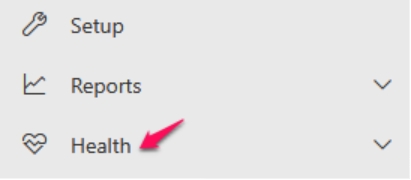
If you don’t see it directly, you may need to click on Health to expand the menu options.
Step-3: View Current Issues:
The Service Health dashboard shows you an overview of any ongoing issues and incidents with various Microsoft 365 services (like Exchange Online, SharePoint, Microsoft Teams, etc.).
These issues may be active incidents or maintenance notifications.
Step-4: Access Issue History:
To check historical issues, you need to go to the History tab, located in the Service Health dashboard.

- You can select History from the top of the Service Health section.

This will show past incidents, service disruptions, or advisories that have affected Microsoft 365 services.
Step-5: Filter and Search for Specific Issues:
Use the filters to narrow down the history:
- You can filter by Date range, such as Last 7 days, Last 30 days, or a custom date range.
- Service filters are available to select a specific Microsoft 365 service (e.g., Teams, Exchange, SharePoint).
- You can also filter by Issue type (e.g., incident, advisory).

Step-6: View Details of Specific Incidents:
Click on a specific issue or incident from the history list to see more details.
You’ll be able to see information such as:
- The start and end time of the issue.
- Impact level (e.g., whether it affected all users or a specific subset).
- Description of the issue, including actions Microsoft took to resolve it.
- Resolution updates for when the issue was resolved.

Step-7: Service Health Notifications:
You can also view notifications about service health directly under Service Health.
Notifications will let you know if any action needs to be taken on your part or if a service is back to normal after being impacted.