Step 1: Log in to the Microsoft 365 Admin Center:
- Open your web browser and go to admin.microsoft.com.
- Enter your admin credentials to sign in.
Step 2: Navigate to the Apps Section:
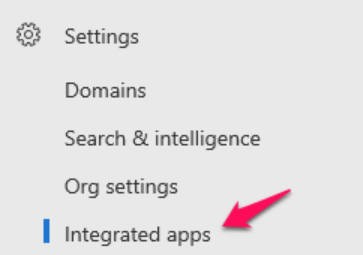
- In the left sidebar, scroll down and click on “Settings” to expand the options.

- Under “Settings”, select “Integrated Apps”.
Step 3: Access the Apps Settings:
- In the Integrated Apps section, click on “Deployed apps”.

Step 4: View Deployed Apps:
- Here we can see the list of apps and services that are deployed or integrated with your organization’s Microsoft 365 environment.
- This list will include both Microsoft apps (like Microsoft Teams, SharePoint, etc.) and third-party apps or custom apps that have been deployed.
- You can click on each app to view its specific settings, permissions, and other details.
Ex. Here currently no apps are deployed.

Step 5: Manage Apps (Optional):
- We can also add or remove apps, configure app permissions, or manage the deployment of these apps for users or groups.
If you’re looking for specific third-party applications or custom apps that have been integrated with Microsoft 365, those should also appear in this section.