Step 1: Signin to M365 Admin Center
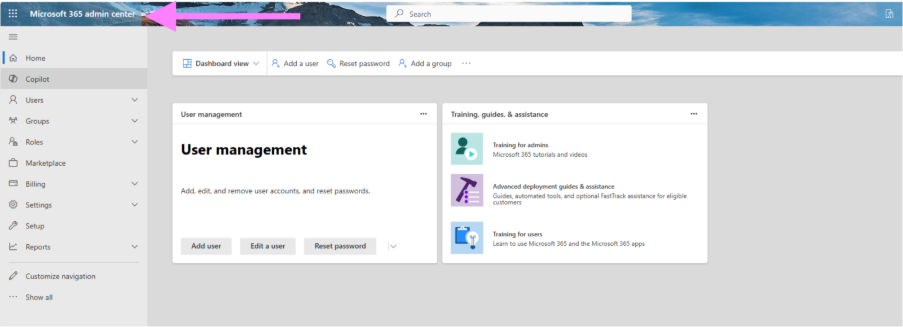
Go to Microsoft 365 Admin Center.
Sign in with your admin credentials.
Step 2: Navigate to Users
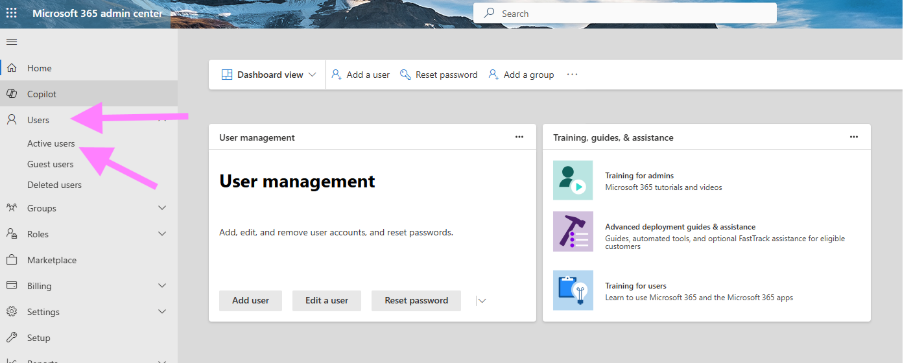
Click on Users > Active Users.
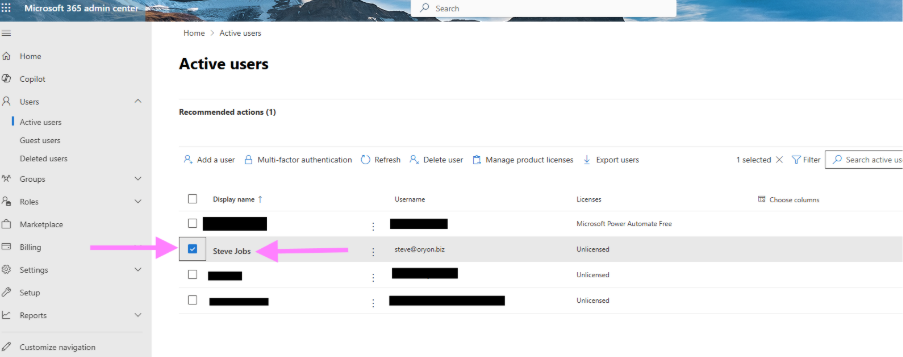
Step 3: Select the User
Find the user whose display name you want to change.
Click on their name to open their profile.
Step 4: Edit the Display Name
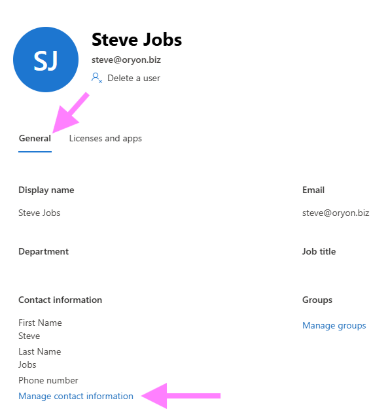
Under General settings, click on the Manage Contact Information option.
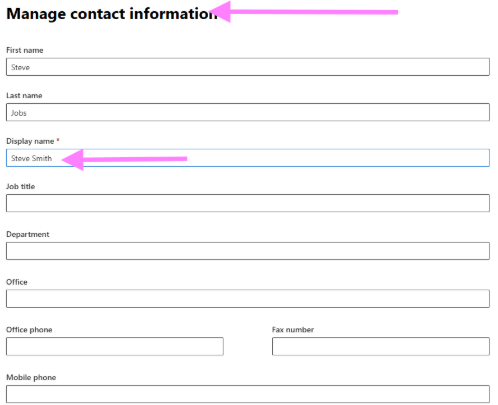
Enter the new display name as per your requirement.
Step 5: Save Changes
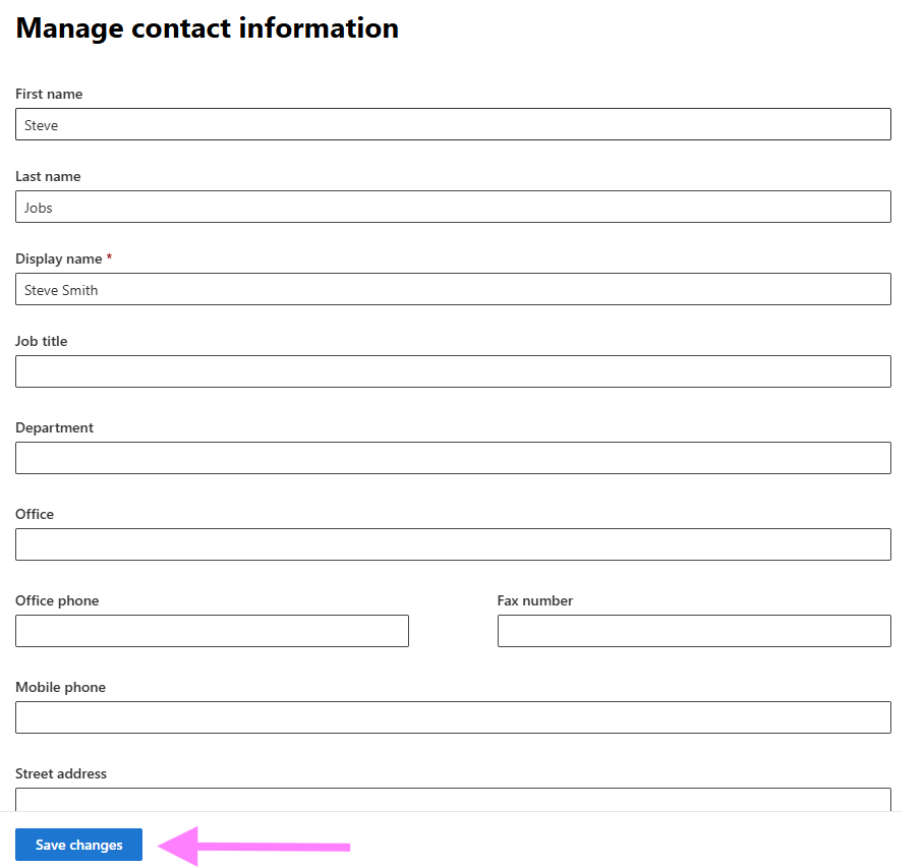
Click Save changes to apply the update.