Published Date: 19th November 2026
Last Updated: 10th November 2026
Category: Microsoft 365 / SharePoint Online
Tested With: SharePoint in Microsoft 365, modern document library experience
Estimated Completion Time: 3 to 5 minutes
How to Delete Files, Folders, and Links from SharePoint
Quick Answer
You can delete files, folders, and links that are no longer required from a SharePoint document library. Deleted content is normally moved to the SharePoint site Recycle Bin, where it may be restored during the applicable retention period.
Important: Deleting a folder also deletes all files and subfolders stored inside it. Review the folder contents and move or archive any required information before deleting the folder.
Prerequisites
Before proceeding, ensure that:
- You can sign in to the required SharePoint site.
- You have permission to delete items from the document library.
- The correct file, folder, or link has been identified.
- Required content has been backed up, moved, or archived.
- The item is not subject to a retention policy, retention label, record declaration, or legal hold that prevents deletion.
- The file is not locked for editing by another user or application.
Steps to Delete a File, Folder, or Link
Step 1: Open the SharePoint Site
Sign in to Microsoft 365 and open the SharePoint site containing the item that needs to be deleted.
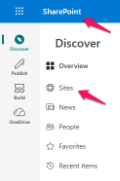
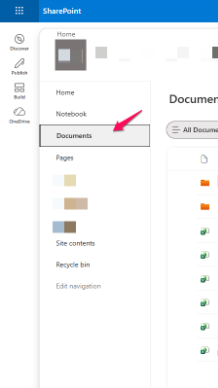
Step 2: Open the Document Library
Navigate to the document library where the file, folder, or link you want to remove is stored.
The default document library may be named Documents or Shared Documents, although the name can differ depending on the site configuration.
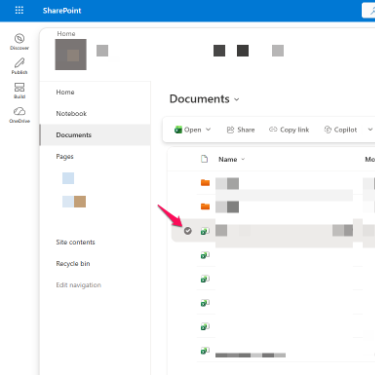
Step 3: Select the Item
Locate the file, folder, or link that you want to delete.
Select the circle or checkbox beside the item. Avoid selecting the file name itself because selecting the name may open the file instead of selecting it. Microsoft advises selecting the item from the far-left column before using the deletion option.
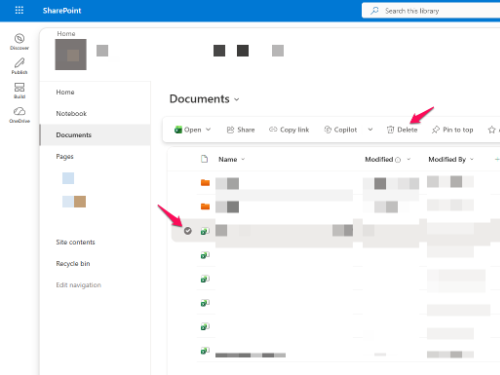
Step 4: Select Delete
Click Delete on the toolbar at the top of the document library.
If Delete is not visible, select the More options menu and check whether the command is available there.
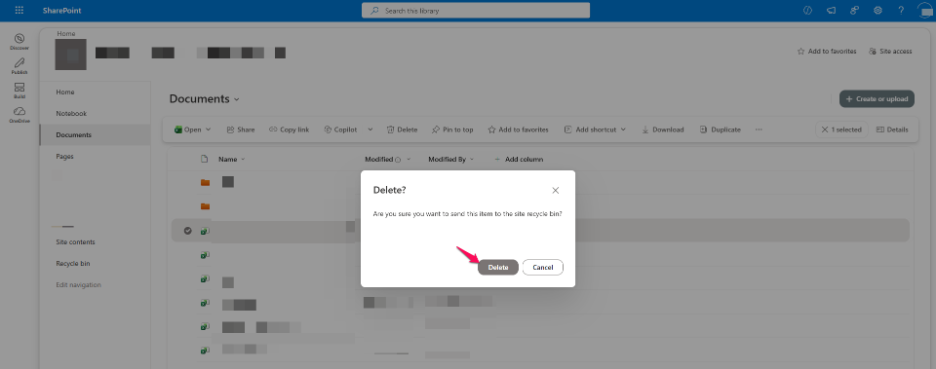
Step 5: Confirm the Deletion
Review the confirmation message and select Delete to continue.
SharePoint will display a notification confirming that the selected item has been deleted.
Step 6: Verify the Result
Confirm that the file, folder, or link is no longer displayed in the document library.
If the item is still visible:
- Refresh the browser.
- Confirm that the correct item was selected.
- Check whether the deletion operation displayed an error.
- Verify that you have permission to delete the item.
How to Delete Multiple Items
SharePoint allows multiple files, folders, or links to be selected and deleted together. Microsoft notes that users can repeat the item selection process to select multiple entries before selecting Delete.
Step 1: Select the Required Items
Select the circle or checkbox beside each item that needs to be deleted.
Step 2: Review the Selection
Check the selected item names carefully.
If a folder is selected, remember that all files and subfolders within it will also be deleted.
Step 3: Delete the Items
Select Delete from the command bar.
Step 4: Confirm the Action
Select Delete in the confirmation message.
Alternative Method: Delete an Item Using the Context Menu
Depending on the document library configuration, you may also delete an item from its context menu.
- Locate the required file, folder, or link.
- Select the More options button beside the item.
- Select Delete.
- Review the item name.
- Select Delete again to confirm.
The available menu options may differ if the SharePoint library has been customized by the organization. Microsoft notes that customized SharePoint applications may not display the same controls as an unmodified document library.
Common Problems
The Delete Option Is Missing
Check the following:
- Confirm that the item is selected.
- Open the item’s More options menu.
- Verify that you have permission to delete content.
- Check whether the document library uses a customized interface.
- Contact the SharePoint site owner if deletion permissions are unavailable.
Microsoft notes that users may not see the standard options when an administrator has customized the SharePoint application or document library.
Access Denied Appears When Deleting
You may not have sufficient permissions to delete the item.
Contact the SharePoint site owner or Microsoft 365 administrator and request that the assigned permission level be reviewed.
A Folder Cannot Be Deleted
Check whether:
- The folder contains files or subfolders.
- A file is checked out or locked.
- A retention policy or retention label applies.
- The folder or an item within it is declared as a record.
- The folder is part of a synchronized library with a pending operation.
Do not remove the folder until you have checked whether its contents need to be retained.
A Deleted Item Still Appears in the Library
Refresh the browser and check the item again.
If the library is synchronized to a computer, allow time for synchronization to complete. Confirm that the deletion did not fail because of permissions, retention settings, or a file lock.
A Restored Item Is Not in the Expected Folder
SharePoint normally restores the item to its original location. If the original folder was deleted, SharePoint can recreate the folder during restoration.
Refresh the document library and search for the item by name.
Frequently Asked Questions
1. Can I delete several SharePoint files at the same time?
Yes. Select each required item and then select Delete from the document library command bar.
2. What happens when I delete a folder?
The folder and all files and subfolders inside it are deleted. Review, move, or archive important content before deleting a folder.
3. Can I restore a deleted SharePoint file?
Yes. Deleted files are normally moved to the site’s Recycle Bin and can be restored to their original location while they remain available.
4. Can I restore a file deleted by another user?
In SharePoint in Microsoft 365, a user with edit permissions may be able to view and restore items deleted by another user.
5. Is the SharePoint Recycle Bin the same as the Windows Recycle Bin?
No. The SharePoint site Recycle Bin is separate from the Windows Recycle Bin. If a synchronized file was deleted locally, check the Windows Recycle Bin as well.
6. What is the second-stage Recycle Bin?
When an item is removed from the site Recycle Bin, it may move to the site collection Recycle Bin. A site collection administrator can view and restore eligible items from this second-stage location.
7. Can a deleted SharePoint link be restored?
A link deleted from a SharePoint document library is handled as a library item and may be restored from the Recycle Bin while it remains available.
8. Why can I not delete a SharePoint file?
Common reasons include insufficient permissions, a locked or checked-out file, a retention policy, a retention label, record-management restrictions, or a customized document library.
Summary
To delete an item from a SharePoint document library:
Open the SharePoint Site → Open the Document Library → Select the File, Folder, or Link → Select Delete → Confirm Delete
Deleted content is normally moved to the SharePoint site Recycle Bin. Open Recycle bin, select the item, and select Restore if the content needs to be recovered.
Always review a folder’s contents before deleting it because all files and subfolders inside the folder will also be removed.
Reference
- Restore items from the site collection Recycle Bin
- Delete items or empty the SharePoint site Recycle Bin
- Restore items deleted from SharePoint or Microsoft Teams
- Delete a file, folder, or link from a SharePoint document library
Oryon provides Microsoft 365 licensing, email hosting, migration, mailbox administration, security configuration, and ongoing technical support for businesses in Singapore.