

1. Overview
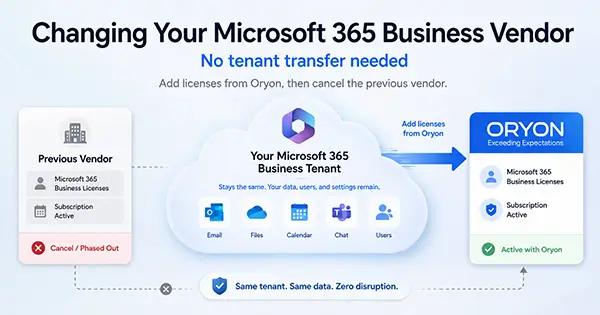
If your company is currently using Microsoft 365 Business through another vendor and would like to move your Microsoft 365 licensing and support to Oryon, the process is usually simple.
In most cases, there is no need to “transfer” your Microsoft 365 tenant, email accounts, domain name, mailboxes, OneDrive files, SharePoint data, or Teams data.
Your Microsoft 365 tenant remains the same. Your users, emails, files, domains, and settings remain in the same Microsoft 365 environment.
The change is mainly a licensing and billing change.
The usual process is:
- Oryon is added as a Microsoft 365 licensing provider for your existing tenant.
- Oryon provisions the required Microsoft 365 licenses.
- The new licenses are assigned to your users.
- Your previous vendor’s licenses are cancelled, allowed to expire, or not renewed.
- Your Microsoft 365 service continues under Oryon’s licensing and support.
2. Important Clarification: This Is Not a Tenant Migration
Changing your Microsoft 365 Business vendor is different from migrating Microsoft 365 data.
A Microsoft 365 tenant migration usually means moving users, mailboxes, domains, files, SharePoint sites, Teams data, and settings from one tenant to another tenant.
That is not normally required when changing vendor.
If your company is keeping the same Microsoft 365 tenant, the same domain name, and the same users, then the process is not a migration. It is a licensing change.
This means:
- Your email addresses remain the same.
- Your mailboxes remain in the same tenant.
- Your OneDrive and SharePoint files remain in the same tenant.
- Your Teams data remains in the same tenant.
- Your users continue signing in with the same Microsoft 365 accounts.
- Your domain name does not need to be moved.
- Your DNS records usually do not need to be changed.
- Your Outlook profile usually does not need to be recreated.
- Your company does not need to create a new Microsoft 365 tenant.
3. Why a Formal Subscription Transfer Is Usually Not Necessary
Some customers assume that their Microsoft 365 subscription must be formally transferred from the old vendor to the new vendor.
In many Microsoft 365 Business cases, this is not necessary.
Instead, Oryon can add new Microsoft 365 licenses to your existing tenant. Once the Oryon licenses are available, your users can be covered by the new licenses, and the old vendor’s licenses can then be cancelled or left to expire.
This approach is often simpler because:
- It does not depend on the previous vendor approving a subscription transfer.
- It avoids delay if the previous vendor is slow to respond.
- It keeps the same Microsoft 365 tenant.
- It avoids unnecessary mailbox or data migration.
- It allows a short overlap period to reduce service interruption risk.
- It gives the customer better control over the timing.
A formal subscription transfer may still be possible in some cases, but it is usually only required if the customer specifically wants the existing subscription billing ownership to move from one CSP partner to another. This requires coordination between the old and new partners.
For most Microsoft 365 Business customers, the practical method is simply to add replacement licenses from Oryon and then cancel or stop renewal of the previous vendor’s licenses.
4. What Will Change
After moving to Oryon, the main changes are:
- Your Microsoft 365 licenses will be supplied by Oryon.
- Your billing for the selected Microsoft 365 licenses will be handled by Oryon.
- Oryon can assist with Microsoft 365 licensing, support, and related services.
- Your previous vendor will no longer need to provide those licenses after their subscriptions are cancelled or expire.
5. What Will Not Change
The following normally remain unchanged:
- Microsoft 365 tenant
- Tenant name
- Domain name
- Email addresses
- Mailboxes
- Outlook access
- OneDrive data
- SharePoint data
- Teams data
- Microsoft 365 user accounts
- Passwords
- Existing Microsoft 365 configuration
- Existing DNS records, unless there is a separate email or domain change
- Existing devices and applications, unless a separate configuration change is required
6. Recommended Process
Step 1: Review Your Existing Microsoft 365 Setup
Before making any changes, the customer should confirm:
- Current Microsoft 365 tenant name
- Primary domain name
- Number of users
- Current license types
- Current license quantity
- Renewal date of the existing subscriptions
- Whether the existing subscription is monthly or annual
- Whether the previous vendor has any minimum commitment period
- Whether any add-ons are being used, such as Microsoft Defender, Teams Phone, Exchange Online Archiving, Copilot, Visio, Project, or Power BI
This review helps avoid buying the wrong license type or cancelling the old licenses too early.
Step 2: Accept Oryon as a Microsoft 365 Licensing Partner
Oryon will provide a Microsoft partner relationship invitation.
The customer’s Microsoft 365 Global Administrator will need to accept the invitation using the existing Microsoft 365 tenant admin account.
This allows Oryon to supply Microsoft 365 licenses to the existing tenant.
Depending on the support arrangement, Oryon may also request appropriate administrator access to assist with licensing, user management, troubleshooting, or support. Administrator access should be granted only as required.
Step 3: Oryon Provisions the New Microsoft 365 Licenses
Once the partner relationship is accepted, Oryon will provision the required Microsoft 365 licenses.
Examples include:
- Microsoft 365 Business Basic
- Microsoft 365 Business Standard
- Microsoft 365 Business Premium
- Exchange Online Plan 1
- Exchange Online Plan 2
- Microsoft Defender add-ons
- Microsoft 365 Copilot
- Other Microsoft 365 products, if required
The license quantity should match or exceed the number of users who need service continuity.
Step 4: Assign or Confirm Licenses for Users
After the new licenses are available, the customer or Oryon will confirm that users are properly licensed.
The goal is to ensure every active user remains licensed before the old vendor’s licenses are removed.
This is the most important part of the process.
Users should not be left without the required Microsoft 365 license, especially for Exchange Online, Teams, OneDrive, SharePoint, and Office desktop applications.
Step 5: Cancel or Stop Renewal of Licenses from the Previous Vendor
Once Oryon licenses are active and users are covered, the customer should contact the previous vendor to cancel the old licenses or turn off renewal.
The previous vendor may have different cancellation rules depending on the subscription type.
For example:
- If the subscription is monthly, cancellation may be possible at the end of the monthly term.
- If the subscription is annual, the customer may need to wait until the annual term ends.
- If the subscription is annual but billed monthly, the customer may still be committed for the remaining term.
- If the subscription has recently renewed, cancellation rights may depend on Microsoft’s cancellation window and the vendor’s terms.
Customers should check the old vendor’s agreement before cancelling.
Oryon can assist by advising what to check, but the old vendor’s billing contract remains between the customer and the previous vendor.
Step 6: Confirm Service Continuity
After the old licenses are cancelled or expire, the customer should confirm:
- Users can still access Outlook and email.
- Users can still access OneDrive.
- Users can still access Teams.
- Users can still access SharePoint.
- Office desktop apps remain activated, if applicable.
- Microsoft 365 admin center shows the correct license count.
- Billing from the previous vendor has stopped or will stop at the correct date.
- Oryon billing has started as agreed.
7. Recommended Overlap Period
Oryon generally recommends having a short overlap period where both the old vendor’s licenses and Oryon licenses are available at the same time.
This reduces the risk of users losing access during the changeover.
The overlap period does not usually need to be long. It is mainly to give time to confirm that all users are covered under the new licenses before the old licenses are cancelled.
8. Important Things Not to Do
Customers should avoid the following:
- Do not delete the Microsoft 365 tenant.
- Do not remove the company domain from Microsoft 365.
- Do not cancel old licenses before confirming new licenses are active.
- Do not create a new Microsoft 365 tenant unless a full migration is intended.
- Do not change DNS records unless Oryon confirms it is required.
- Do not assume the previous vendor’s subscription can be cancelled immediately if it is under an annual commitment.
- Do not remove licenses from users unless replacement licenses are already available.
9. Common Questions
Will my email be disrupted?
Normally, no. If the same Microsoft 365 tenant is used and users remain properly licensed, email service should continue as usual.
Do I need to migrate my mailbox?
No, not if you are keeping the same Microsoft 365 tenant. Your mailbox stays in the same Microsoft 365 environment.
Do I need to change my MX records or DNS records?
Usually no. Since the tenant and email service remain the same, DNS changes are normally not required.
Will my users need to set up Outlook again?
Usually no. Since the mailbox and tenant remain the same, Outlook should continue working normally.
Can I have licenses from two vendors at the same time?
Yes, this can happen during the transition period. This is useful because Oryon can add replacement licenses before the previous vendor’s licenses are removed.
Can Oryon cancel my previous vendor’s licenses for me?
Usually, no. The previous vendor’s billing agreement is between the customer and the previous vendor. The customer should request cancellation directly from the previous vendor.
Oryon can guide the customer on what to request and when to request it.
What if my previous vendor refuses to transfer the subscription?
A formal subscription transfer is usually not required. Oryon can provision new licenses in the same tenant, and the customer can cancel or stop renewal of the previous vendor’s licenses based on the previous vendor’s contract terms.
What if I am still under an annual commitment with the previous vendor?
You may need to continue paying the previous vendor until the end of the subscription term. In this case, Oryon can still help plan the changeover so that new licenses start at the right time and duplicate billing is minimized.
Will my data be deleted when I cancel the old vendor’s licenses?
If users continue to have the correct replacement licenses in the same tenant, their Microsoft 365 services should continue. However, customers should not cancel or remove licenses without confirming replacement coverage first.
10. Information Required by Oryon
To assist with the change, Oryon may request:
- Company name
- Microsoft 365 tenant domain
- Primary email domain
- Current Microsoft 365 license types
- Number of users
- Current vendor name
- Subscription renewal date
- Current billing term
- Required license types from Oryon
- Global Administrator contact
- Any special Microsoft 365 add-ons currently used
- Whether Oryon is required to provide administration or support
11. Suggested Email to Previous Vendor
Subject: Request to Cancel or Stop Renewal of Microsoft 365 Licenses
Dear [Previous Vendor Name],
We would like to request cancellation or non-renewal of our Microsoft 365 licenses currently supplied through your company.
Please confirm the following:
- Current Microsoft 365 license types and quantities
- Current subscription renewal date
- Whether the subscriptions are monthly or annual term
- Earliest cancellation date
- Whether there are any remaining contractual charges
- Confirmation that cancellation will not delete our Microsoft 365 tenant, domain, users, mailboxes, OneDrive, SharePoint, or Teams data
- Confirmation of the final billing date
Please do not delete our Microsoft 365 tenant or remove our domain. We are only requesting cancellation or non-renewal of the Microsoft 365 licenses supplied through your company.
Thank you.
12. Summary
Changing Microsoft 365 Business vendor to Oryon is usually a straightforward licensing change.
A full Microsoft 365 transfer or migration is normally not required.
The customer keeps the same Microsoft 365 tenant, users, email addresses, mailboxes, files, and domain. Oryon adds the required licenses, confirms users are covered, and the customer then cancels or stops renewal of the previous vendor’s licenses.
This method is simple, practical, and reduces the risk of unnecessary disruption.

