

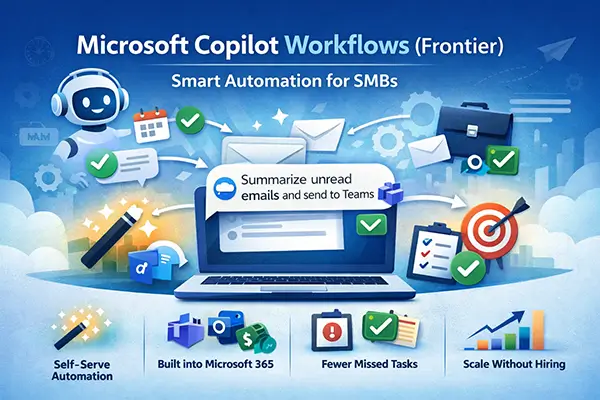
SMBs run on speed, focus, and follow‑through—yet a surprising amount of time disappears into repeated tasks: chasing approvals, summarizing inboxes, reminding people about deadlines, and nudging processes along.
Microsoft 365 Copilot Workflows (Frontier) introduces a new kind of automation: prompt-first workflow creation. Instead of building flows step-by-step, you describe the outcome in natural language, and Copilot generates a workflow across supported Microsoft 365 services.
Workflows is positioned as an agent inside Microsoft 365 Copilot that can automate tasks across Outlook, Teams, SharePoint, and Planner, trigger actions on a schedule or events, collect input using adaptive cards in Teams, and let you test/manage in a visual designer.
What Is Workflows (Frontier), Exactly?
Workflows is a Copilot agent available to customers enrolled in the Frontier program (early access). It’s designed to make common automation accessible to everyday users—especially those who don’t want to open Power Automate and wire triggers/actions manually.
In plain terms, Workflows lets you say things like:
“Every weekday morning, summarize my unread emails from the last 24 hours and send it to me on Teams.”
…and Copilot turns that into a workflow with steps you can view, test, and manage.
Why Workflows Is a Big Deal for SMBs
SMBs benefit disproportionately because:
- Automation becomes self-serve: users can describe the outcome rather than learning workflow design.
- It’s built into the flow of work: Teams, Outlook, Planner, SharePoint—where SMB work already happens.
- Follow-through improves: scheduled summaries and event-based triggers reduce “dropped balls.”
Department Playbooks: Real SMB Workflow Examples (with Copy‑Paste Prompts)
Each department section below includes:
- Best-fit workflow ideas (realistic SMB use cases)
- Prompts you can paste into Workflows
- Common outcomes you can highlight in your blog (time saved, fewer missed items)
All examples below use the documented building blocks: Outlook, Teams, SharePoint, Planner, Approvals, event/schedule triggers, adaptive cards, and Microsoft 365 data.
1) Leadership / Management (Owner, GM, Department Heads)
A. Weekly operating summary to Teams
What it solves: leaders spend Monday morning piecing together updates from email + tasks.
Prompt: “Every Monday 8am, summarize my upcoming meetings, overdue Planner tasks, and any unread important emails from the last 72 hours. Send a single briefing to me in Teams with sections: Decisions Needed, Risks, and Top Priorities.”
B. “Decision needed” email triage
Prompt: “When I receive an email marked high importance, summarize it and ask me in Teams what action to take. If I choose ‘Delegate’, create a Planner task and post a message to the relevant Teams chat.”
C. Approvals chase-down
Prompt: “Every weekday 4pm, check for any pending Approvals assigned to me. If there are any older than 24 hours, send me a Teams reminder with the list and links.”
2) Sales (Account Executives, SMB Sellers)
A. Lead response assistant (speed-to-lead)
Prompt: “When I receive an email from a new external sender, post a Teams card asking: ‘Is this a lead?’ If yes, create a Planner task called ‘Respond to lead’ due today and include the email summary.”
B. Quote / proposal follow-up reminders
Prompt: “When I send an email with subject containing ‘Quote’ or ‘Proposal’, create a Planner follow-up task due in 3 business days. On the due date morning, send me a Teams reminder with the email thread summary.”
C. Weekly pipeline hygiene (lightweight SMB version)
Prompt: “Every Friday 3pm, send me a Teams message listing my open Planner sales tasks due next week and any overdue. For each item, ask whether to ‘Close’, ‘Reschedule’, or ‘Escalate’ using a Teams card.”
3) Marketing (Content, Social, Campaigns)
A. Content approval workflow (simple but powerful)
Prompt: “When a file is added to the SharePoint folder ‘Marketing/For Approval’, start an Approval request to the Marketing Lead. If approved, post a Teams message to #marketing with the file link and next steps.”
B. Weekly campaign task broadcast
Microsoft explicitly describes workflow-style automations like sending Teams updates sourced from Planner tasks.
Prompt: “Every Monday 9am, post a Teams update to the marketing channel with upcoming Planner tasks due this week, grouped by campaign.”
C. Social posting checklist reminder
Prompt: “Every weekday at 10am, send me a Teams checklist card for today’s social tasks (Draft, Review, Schedule). When I submit the card, create/update a Planner task for any unchecked items.”
4) Finance (Billing, AP/AR, Bookkeeping)
A. Invoice approval routing
Prompt: “When an email arrives with ‘invoice’ in the subject and an attachment, send an Approval request to the Finance Manager. If approved, save the attachment to SharePoint ‘Finance/Approved Invoices’ and notify me in Teams.”
B. Payment reminder follow-ups
Prompt: “When I email a customer about payment, create a Planner task ‘Payment follow-up’ due in 7 days. If the task becomes overdue, send me a Teams reminder with the customer email thread summary.”
C. Month-end personal checklist
Prompt: “On the first business day of each month, create a Planner checklist for month-end close tasks and message me in Teams with the list.”
5) HR (Hiring, Onboarding, Employee Requests)
A. Onboarding “day 0” workflow
Prompt: “When I receive an email with subject containing ‘New Hire’ or ‘Offer Accepted’, post a Teams card asking for start date, role, and manager. Then create a Planner onboarding plan and notify the manager in Teams.”
B. Leave / policy requests triage
Prompt: “When employees email ‘leave request’ or ‘policy question’, summarize the email and post it to the HR Teams channel with suggested next steps. Create a Planner task assigned to HR Ops.”
C. Probation check-in reminders
Prompt: “Every Monday morning, check my HR Planner plan for upcoming probation check-ins due within 14 days, and send a Teams reminder with the list.”
6) Operations / Admin (Office Ops, Procurement, Facilities)
A. Purchase request intake via Teams card
Prompt: “When someone messages me ‘purchase request’, send them a Teams adaptive card asking for item, amount, vendor, and needed-by date. Save the results in SharePoint and create a Planner task for procurement review.”
B. Vendor email sorting + action list
Prompt: “Each morning, summarize unread emails from key vendors. Categorize them into: Action Needed, FYI, and Delivery/Service Updates. Send the summary to me in Teams.”
C. Approval + announcement
Prompt: “When an operational change document is uploaded to SharePoint ‘Ops/Changes’, request Approval from Ops Lead. After approval, post a Teams announcement to the Ops channel.”
7) Customer Support (Email-based support, shared inbox style)
A. Ticket triage in Teams (without a ticketing system)
Prompt: “When a customer email arrives with negative sentiment or words like ‘urgent’, summarize it and post in Teams with a suggested response draft. Create a Planner task due today.”
B. SLA reminder
Prompt: “If a customer email has not been replied to within 24 hours, send me a Teams reminder with the email summary and recommended next action.”
C. Weekly “top issues” digest
Prompt: “Every Friday 5pm, summarize this week’s customer support emails into top 5 themes and send to the support Teams channel with recommended improvements.”
8) IT / Helpdesk (Lean IT Teams)
A. Incident comms helper
Prompt: “When I receive an email with ‘incident’ or ‘outage’, create a Planner task, and draft a Teams update message with what happened, impact, and next update time. Ask me to confirm before posting.” [
B. Change approval + broadcast
Prompt: “When a change request file is uploaded to SharePoint ‘IT/Changes’, start an Approval request to the IT Manager. If approved, post the maintenance notice to Teams.”
C. Weekly IT action review
Prompt: “Every Monday morning, send me a Teams summary of overdue IT Planner tasks, grouped by priority, and ask me which ones to escalate.”
9) Project Management / Delivery (Agencies, services firms, SMB consultancies)
A. Meeting → action items workflow
Prompt: “After each meeting on my calendar, ask me via a Teams card for action items and owners. Create Planner tasks and post a recap message in Teams.”
B. Weekly delivery status ping
Prompt: “Every Thursday 4pm, send a Teams card to project owners asking for status (Green/Amber/Red) and next milestone date. Save responses to SharePoint and post a roll-up summary.”
A Simple SMB Adoption Plan (So Workflows Actually Gets Used)
Step 1 — Pick 3 “high-friction” routines per department
Focus on: reminders, approvals, summaries, intake forms—these map cleanly to Workflows’ capabilities (schedule/event triggers + Teams + Outlook + Planner + SharePoint + Approvals).
Step 2 — Create a “Workflow Library” channel in Teams
Post the best prompts, outcomes, and owners. This keeps adoption visible and repeatable.
Step 3 — Keep governance lightweight but real
Microsoft’s own guidance highlights prerequisites like allowing the relevant connectors in DLP policies (SharePoint, Approvals, Teams, Planner, Outlook).
Step 4 — Measure success with simple signals
- fewer missed approvals
- fewer overdue tasks
- faster response times
- fewer “can you remind me?” messages
Why This Makes SMBs Faster Without Hiring More People
Workflows (Frontier) isn’t about building giant enterprise automations. It’s about turning the everyday operational drag—triage, reminders, follow‑ups, approval chasing—into background execution using the Microsoft 365 tools SMBs already live in.

