Step 1: Log in to your Admin Panel.
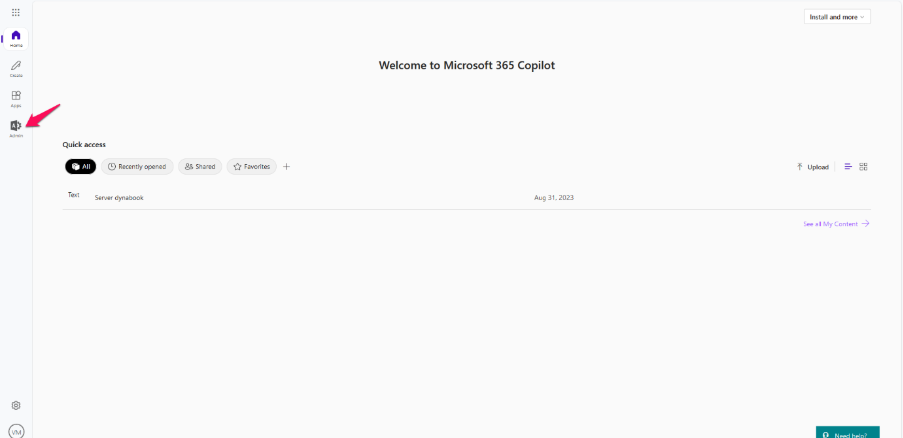
Step 2: Select Admin.
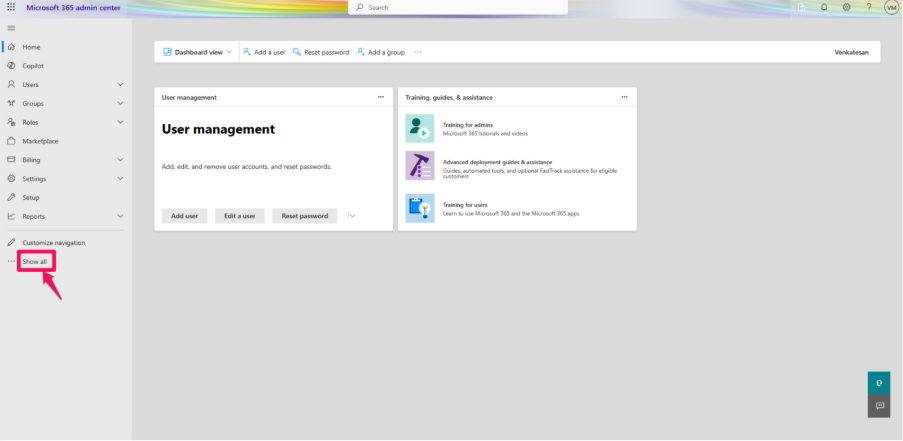
Step 3: In the lower-left navigation, click Show all.
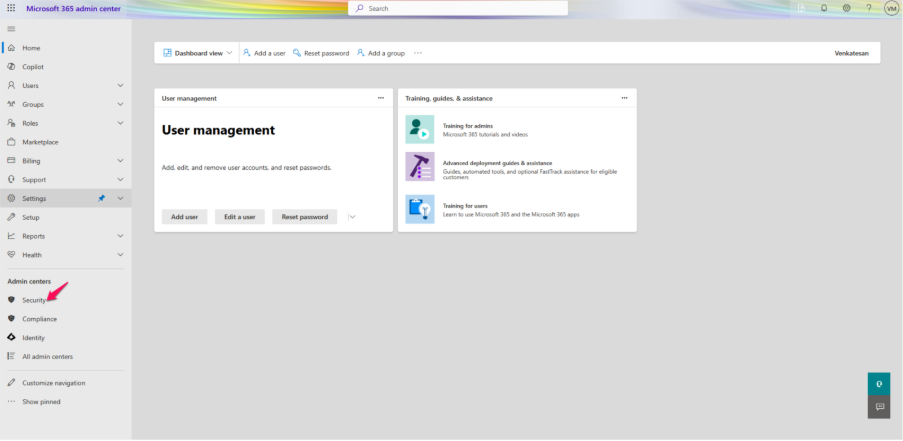
Step 4: Under Admin Center, click Security.
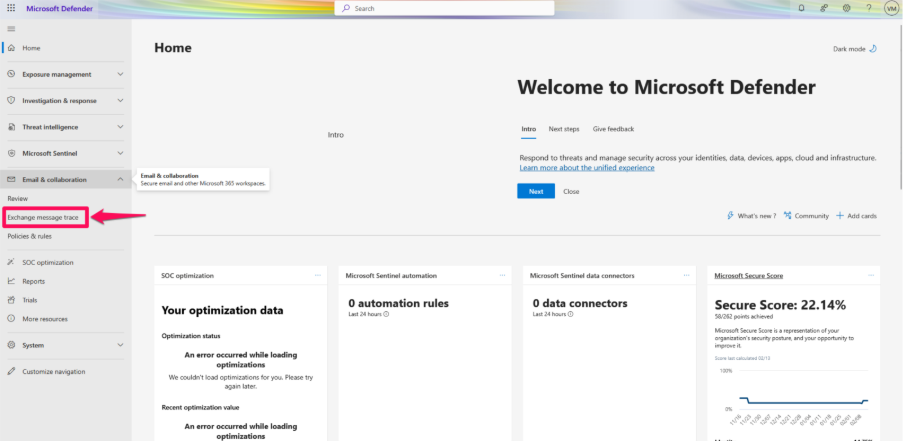
Step 5: Click Exchange Message Trace under Email Collaboration.
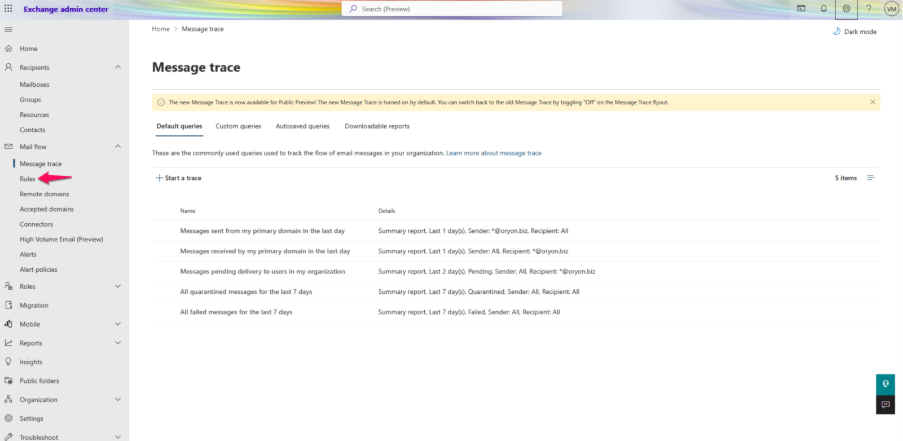
Step 6: Navigate to Mail Flow > Rules.
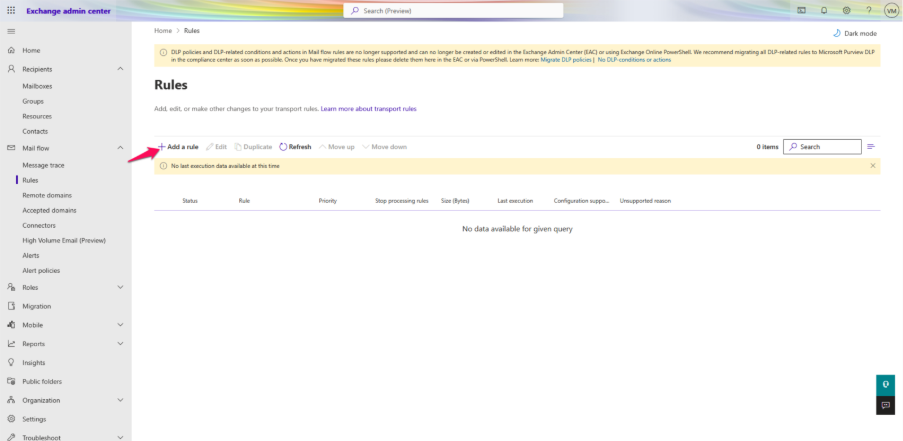
Step 7: Click Add Rule.
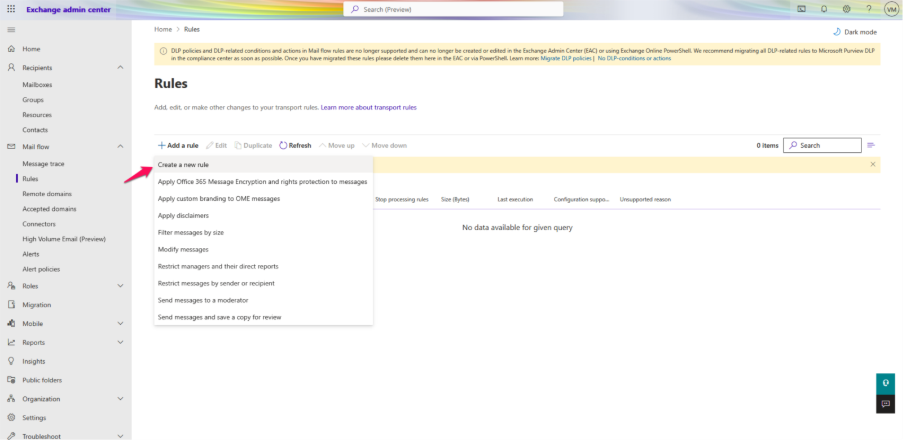
Step 8: Click Create a New Rule.
Step 9: Enter the Name of the rule.
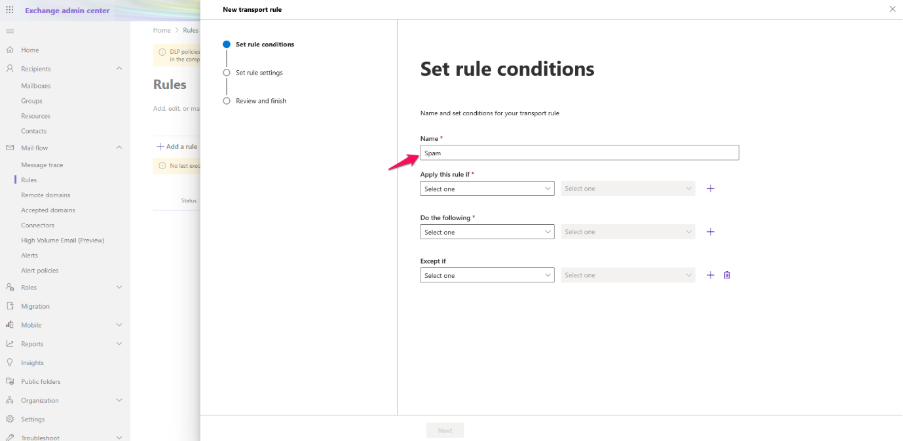
Step 10: Under Apply this rule if, select any option (e.g., Sender).
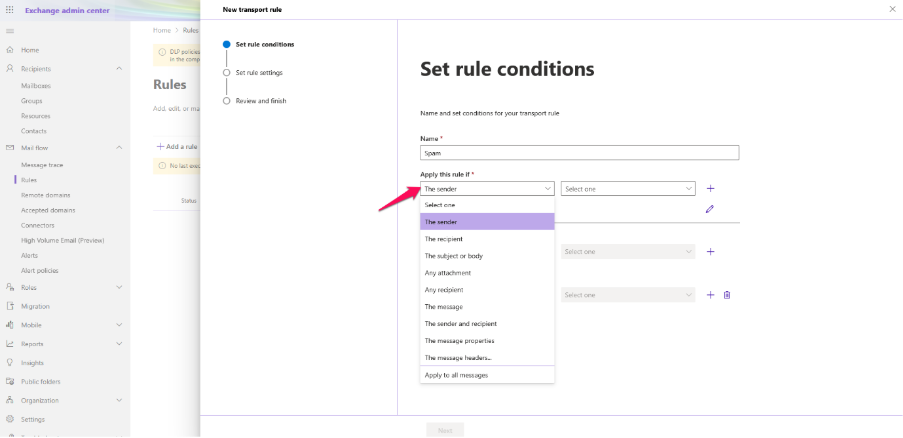
Step 11: Choose Condition and enter the relevant words/phrases.
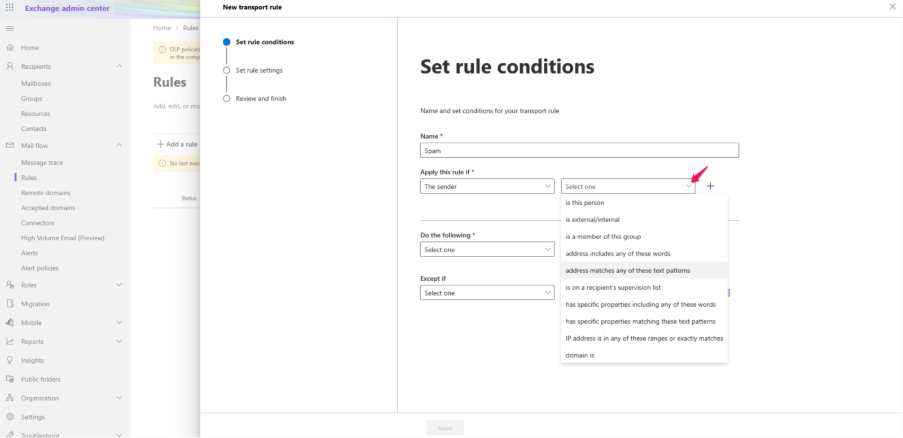
Step 12: Under Do the following, set the action for the rule.
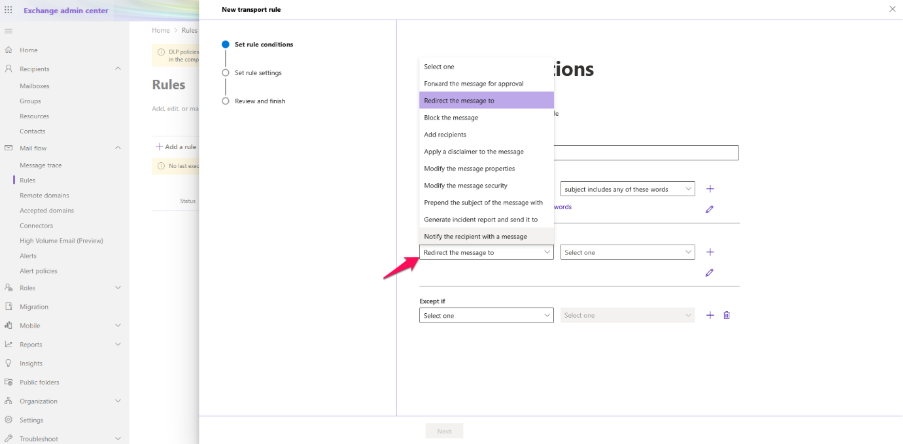
Step 13: Choose the condition and enter the words/phrases.
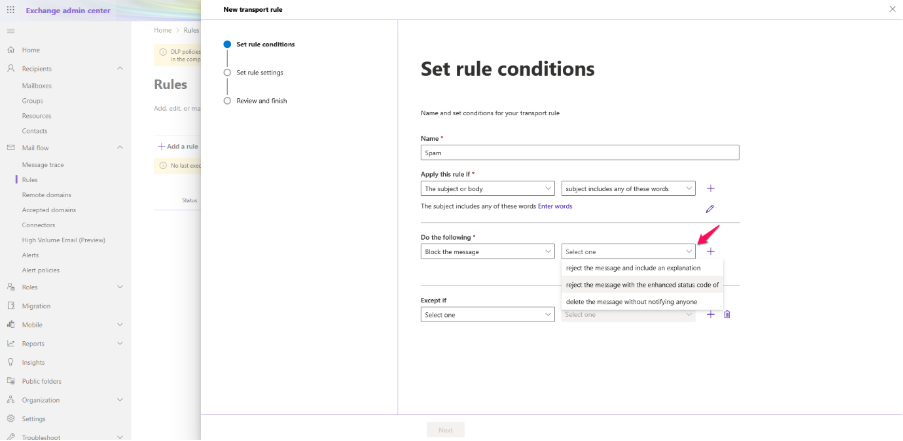
Step 14: Under Except if, select any exceptions.
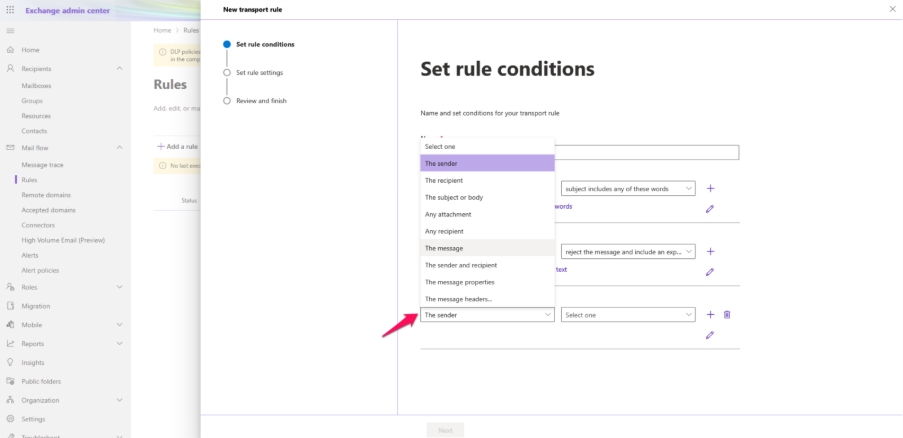
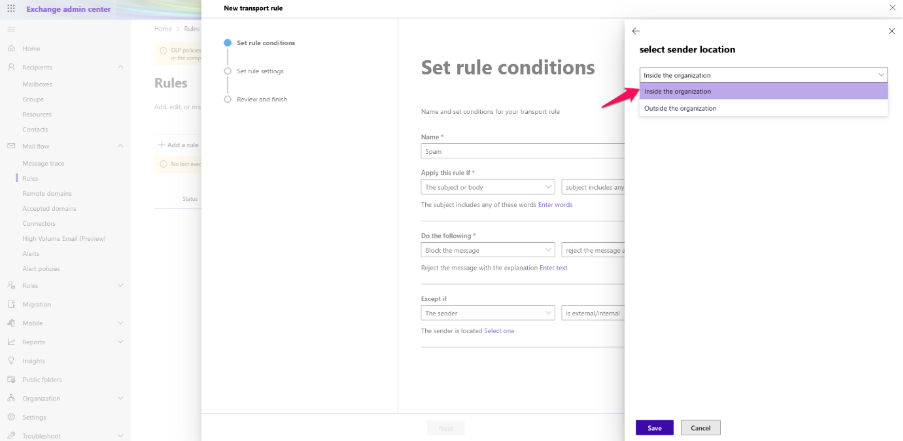
Step 15: Select conditions for it.
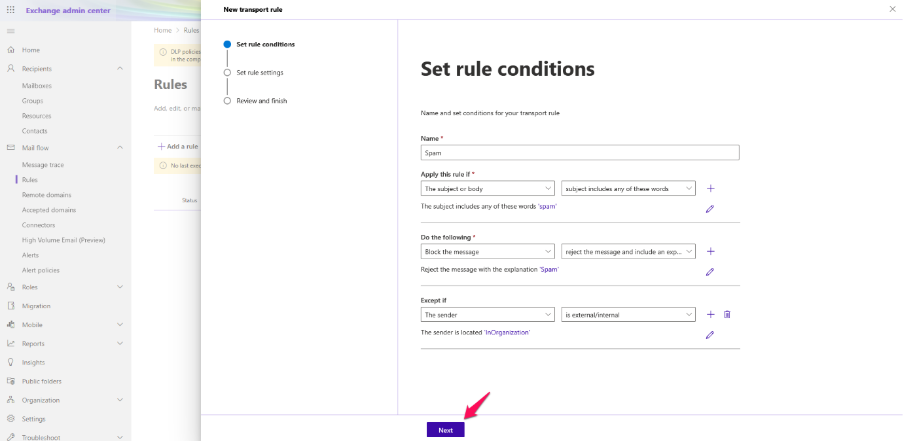
Step 16: Click Next.
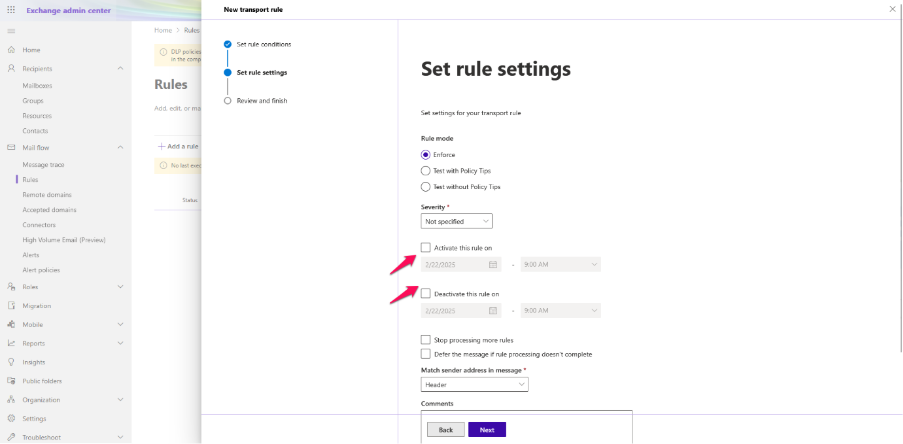
Step 17: Choose additional rule settings, such as activation and deactivation date if needed.
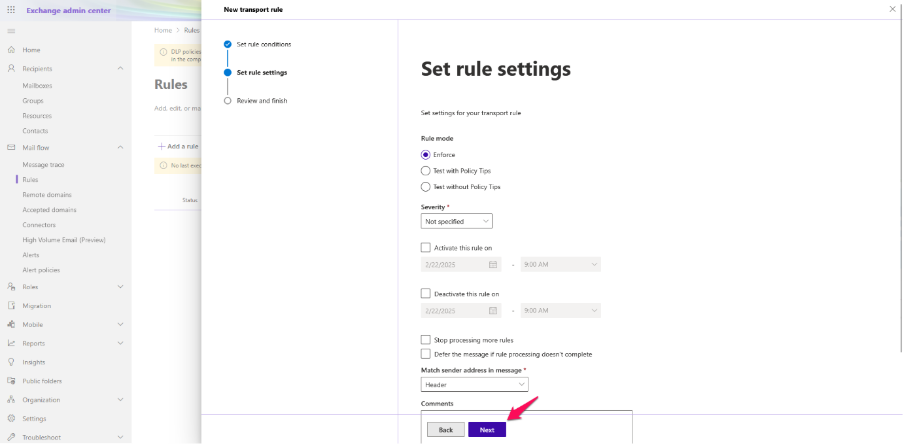
Step 18: Click Next.
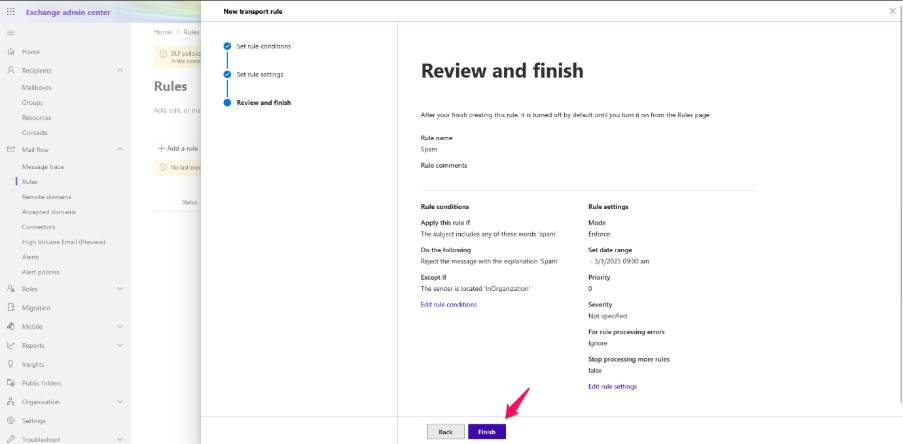
Step 19: Review the rule and click Finish.